

Media StudioTry Now
Media Studio
Media Studio is Genspark's workbench for media: ads, films, images, audio, 3D and animated pages, all on one board. This guide covers the whole product, from your first project to step-by-step recipes.
- Board and image tools
- Video and dubbing
- Video composer
- 3D director stage and 3D worlds
- HTML pages, posters and interactive films
- Motion Studio
- Story bibles
- Sharing and collaboration
- Recipes
Overview
What is Media Studio?
One brief, one board, one film you can ship.
Media Studio is Genspark's workbench for media. You describe what you want; the agent breaks it down, picks the models, runs the tools and places every result on a board — and every result stays editable: an image can be split into a layered document, a clip can go into a multitrack timeline, a scene can be blocked out as a white model on a 3D stage before a single frame is rendered, and a voice track can be laid back over the picture.
It is not a "type a line, take an image" tool:
- From brief to deliverable. Ads, product showcases, explainers, short films, podcast clips, brand kits, interactive films, animated HTML pages — the whole way from the first sentence to the finished file happens on one board.
- The board is the project. Nodes and connections record every step. To change step three, go back to step three; nothing has to be redone from scratch.
- Outputs are editable by design. A layer editor, a video composer, a 3D director stage and editable HTML pages mean AI output can be refined the way it would be in a professional tool.
- Skills carry method, not just buttons. A skill is a proven production routine (write the script, lock the cast, keep continuity, render shot by shot). Attach one and the agent follows it.
- Every credit is accounted for. On the Standard tier, planning and default-quality images come out of your weekly free quota; video, audio and 3D use credits; a draft costs nothing until you press Run.
All of these were made in Media Studio: a 30-second footwear TVC, a 60-second French kitchen brand film, a four-ending interactive short, an IMAX movie one-sheet, a 30-second animated HTML data report, and a night car chase blocked out as a white model before it was shot. Open Get inspired on the home page and press How it's made on any piece to see how it was built, step by step.
Why it is different
Most AI media tools treat every generation as an endpoint: you get an image or a clip, and the workflow resets. Media Studio treats the board as a workbench:
- Results stay on the board, not in a downloads folder. Every output is a node you can open, redo or version.
- References are first-class. Connecting one node to another makes it a reference the next generation must respect — so a character, a product or a set stays consistent across dozens of shots without being re-described every round.
- The professional toolchain is on the board. A Photoshop-grade layer editor for images, a multitrack timeline for video (with Premiere / CapCut project export), a director stage for 3D, and a Studio for every HTML page.
- Skills turn "it can" into "it does". Film production, ad direction, explainers, podcasts, music singles… attach a skill and the agent follows a mature routine instead of improvising.
- Costs are predictable. Free quota covers planning and default-quality images; drafts let you see the plan before spending.
What you can make
You do not pick a "type" first — describe the result and the agent picks the approach. Typical deliverables (each has a full walkthrough and an example project in Recipes):
| What you want | How you might say it |
|---|---|
| Product ad / TVC | Make a [15]-second vertical ad from this product shot, lead with [the key benefit], end on the logo and one call to action. |
| Product showcase | A 30-second showcase for [these headphones]: the product is the hero, on-screen callouts, readable with the sound off. |
| Explainer / report video | Turn [this doc / this deck] into a [60]-second explainer that answers [one question], facts checked, with captions and a narrator. |
| Short film / brand story | A 30-second short with a setup, a turn and a line worth remembering. Style: [neon in the rain]. |
| Recast existing footage | Same moves and camera as [this reference video], with [my character] in [my place] — show me the white model first. |
| Long content into clips | Cut [this podcast / this talk] into [5] vertical clips of 30–60 seconds, each opening on its strongest line, captioned. |
| Presenter / talking head | A presenter video from this script, [professional but warm], [office] background. |
| Music / music video | A [30]-second score for [this brand film], [bright and building]; hits on the cuts. |
| Brand visual kit | A visual system for [this coffee brand]: logo rules, palette, packaging, menu, social templates. |
| Poster / key visual | A [cinematic] key-art poster, title [ORBITAL], with room for a billing block at the bottom. |
| 3D blocking / previs | Block out [a two-car chase on a night street] on a white stage, then shoot it in [rainy neon, handheld]. |
| Interactive film / animated page | A vertical branching story with choices; or a 30-second animated data page from [this report]. |
Quick start
-
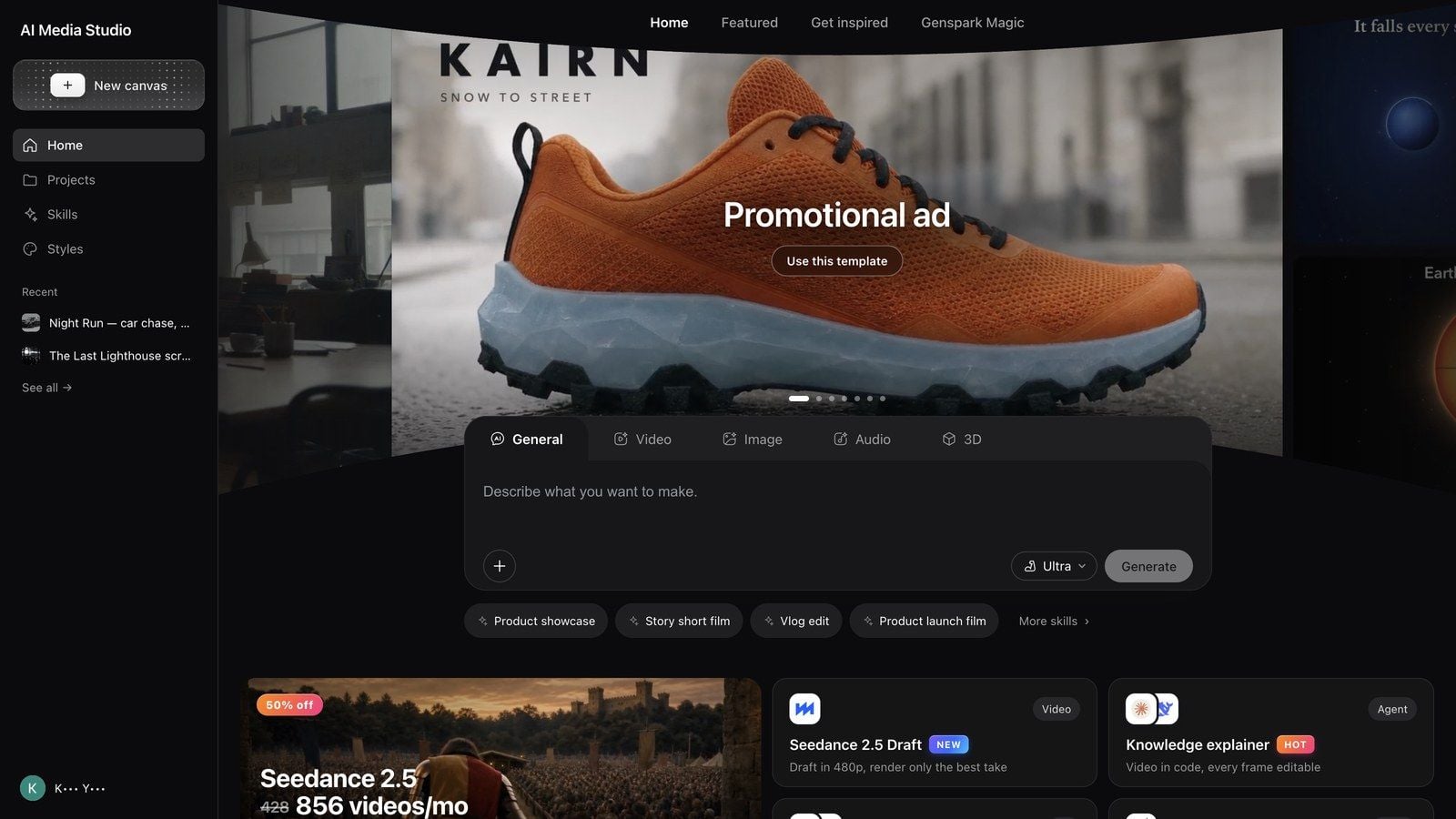
Open Media Studio: genspark.ai/media-studio. The landing page is Home: the composer in the middle, Start here template cards below it, then the Get inspired wall; your own work is under Projects in the left rail.
-
Pick a mode above the composer — General / Video / Image / Audio / 3D. General lets the agent decide the medium; the others focus the composer on that medium.
-
Describe the result, not the buttons. Say who it is for, what it is for, and what must be true at the end.
Make a 15-second vertical ad for these running shoes from this product shot. Keep the shoe exactly as in the photo, move it to a rain-washed city street at dawn, and end on the logo with one call to action.
Turn this onboarding deck into a 60-second explainer for new hires, with on-screen captions and a calm narrator.
This podcast is 40 minutes. Cut it into 5 vertical clips of 30–60 seconds, each opening on its strongest line, with captions.
-
Answer the first round of questions. For most briefs the agent asks a short round first (format, length, language, style, reference material). Answer what you care about and let it default the rest.
-
Work on the board. Results land as nodes beside the conversation. Click a node to get its toolbar; drag from one node's ⊕ handle to another to make it a reference for the next generation. Keep iterating in the same conversation.
-
Deliver. Run it full screen with Present, then download the result or share the project. All the export paths are in Sharing and collaboration.

What actually happens in your first project
- The agent asks before it spends. You usually get a question card first. Answering it is far cheaper than regenerating a wrong result.
- Story briefs get a Story bible invitation. When a film or a series still has to be invented, and it runs past about 3 minutes, its cast recurs across deliverables or its setting is undecided — and the project is still empty — the agent first offers a card: settle the world, cast and look in a Story Bible (Settle the setting in a Story Bible) or keep going right here (Continue here). See Sharing and collaboration.
- Generations may arrive as drafts. When the agent is not sure you want to spend the credits, it drafts the request on the board with a Run button — nothing is charged until you press it.
- Big batches ask for confirmation. Ordering many clips or images at once triggers a confirmation; the agent usually suggests smaller batches, which also keeps results more consistent.
- Everything is versioned. A project is a repository: board and assets keep their history, and you can go back.
Tip: if you already know the look you want, attach the references before you send the brief. Two solid references save more credits than ten rounds of "a bit warmer".
Creation modes
| Mode | When to use it | What changes in the composer |
|---|---|---|
| General | Let the agent choose the medium, or mix media in one piece | The agent picks image / video / audio / 3D at every step |
| Video | The deliverable is a film: ad, short, explainer | Video-oriented prompting; direct generations expose model, aspect and duration |
| Image | Stills only: product shots, posters, key visuals, keyframes | Image-oriented prompting and model choice |
| Audio | Voice-over, music, sound for a cut | Audio-oriented prompting; give a script or a description |
| 3D | A product or set you can orbit | 3D-oriented prompting; results land as 3D nodes |
A mode is a starting point, not a cage: the agent still produces other media when the task needs it, and you can switch modes between messages.
Skills
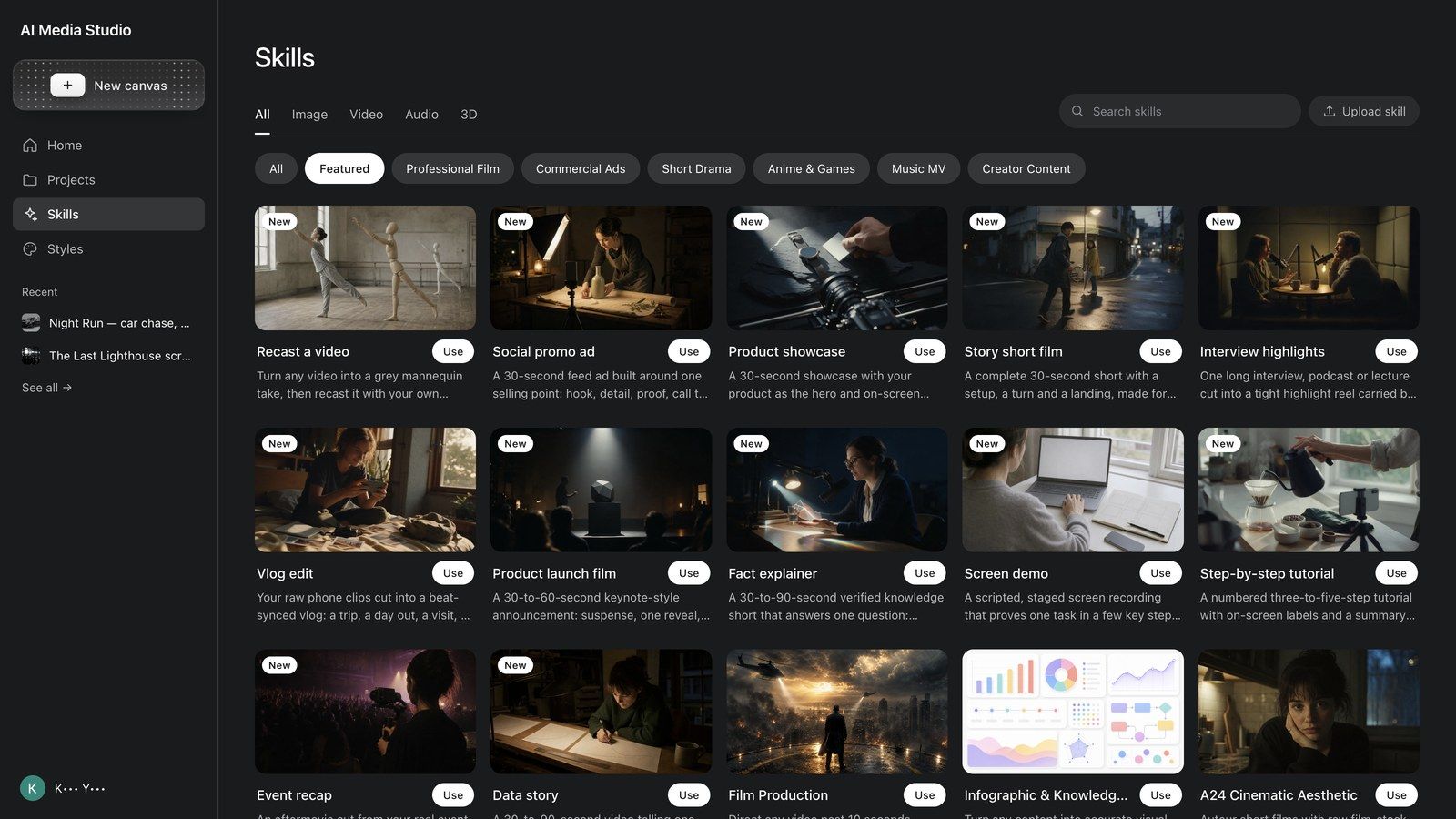
The Quick skills chips under the composer prefill a proven brief: Product showcase, Story short film, Vlog edit, Product launch film, Screen demo, Step-by-step tutorial, Event recap, Data story, plus More skills › for the full list. A chip only fills in the text — replace the bracketed parts with your own before you send.
Attaching a skill
The + menu at the bottom left of the composer has Skills: filter by medium (All / Image / Video / Audio / 3D) and by category (Featured / Short Drama / Professional Film / Commercial Ads / Creator Content / Anime & Games / Music MV / General Skills), press Details to read what a skill does and a sample prompt, and Use to attach it to the conversation. Production skills you will use often: Film Production, Visual Suite, AI Pods (podcasts), Audiobook, Music Single, World Scene; ad skills Product Ad Director, AIGC TVC Director, Brand Commercial Director; casting skills Casting Director and Actor Emotion Performer; and Interactive Film Game for branching films.
Start here
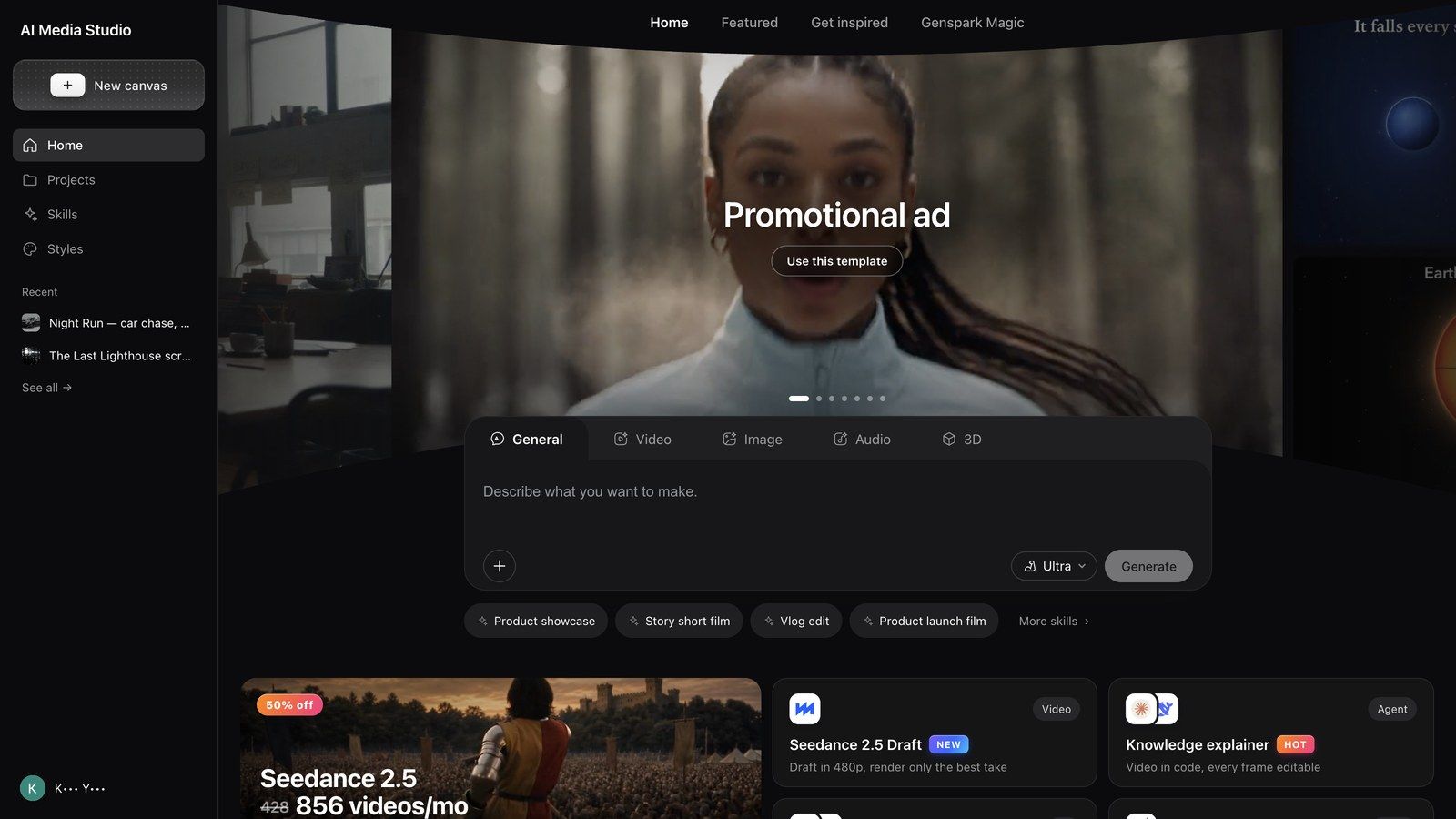
Start here is the fastest way in: seven cards, each a working template with its skill and a prefilled prompt. Open one, replace the bracketed parts, send.
| Card | What it makes | The prompt it prefills |
|---|---|---|
| Promotional ad | One product shot → a finished ad | Make a [15]-second ad for [my product] from this product shot or page link, showing [its key benefit]. End on the logo and one call to action. |
| Remix a hit | Borrow the structure of a video that worked (upload the video to remix) | Remake this video for [my product]. Keep its opening hook, pacing and shot order; change the people, setting and lines to fit. |
| Knowledge explainer | Docs, decks and links, narrated on screen | Turn [this doc, deck or link] into a [60]-second explainer that answers [one question] for [new hires], facts checked, with on-screen visuals and captions. |
| Genspark Magic | Same moves and camera, your cast and place | Same moves and camera as the template, with [my character] in [my place]. |
| Auto clips | One long talk, many short clips (upload the recording) | Cut this talk, podcast or interview into [5] vertical clips, 30 to 60 seconds each. Open every clip on its strongest line and add captions. |
| Stage a scene | Block it in white, shoot it for real | Block out [a two-person chase down a night street] on a white stage, then shoot the final in [rainy neon, handheld] style. |
| Brainstorm | Ideas, hooks and storyboards before you spend | Give me [5] video ideas for [my brand] based on what is trending this week, each with a hook and a one-line story. |
Get inspired
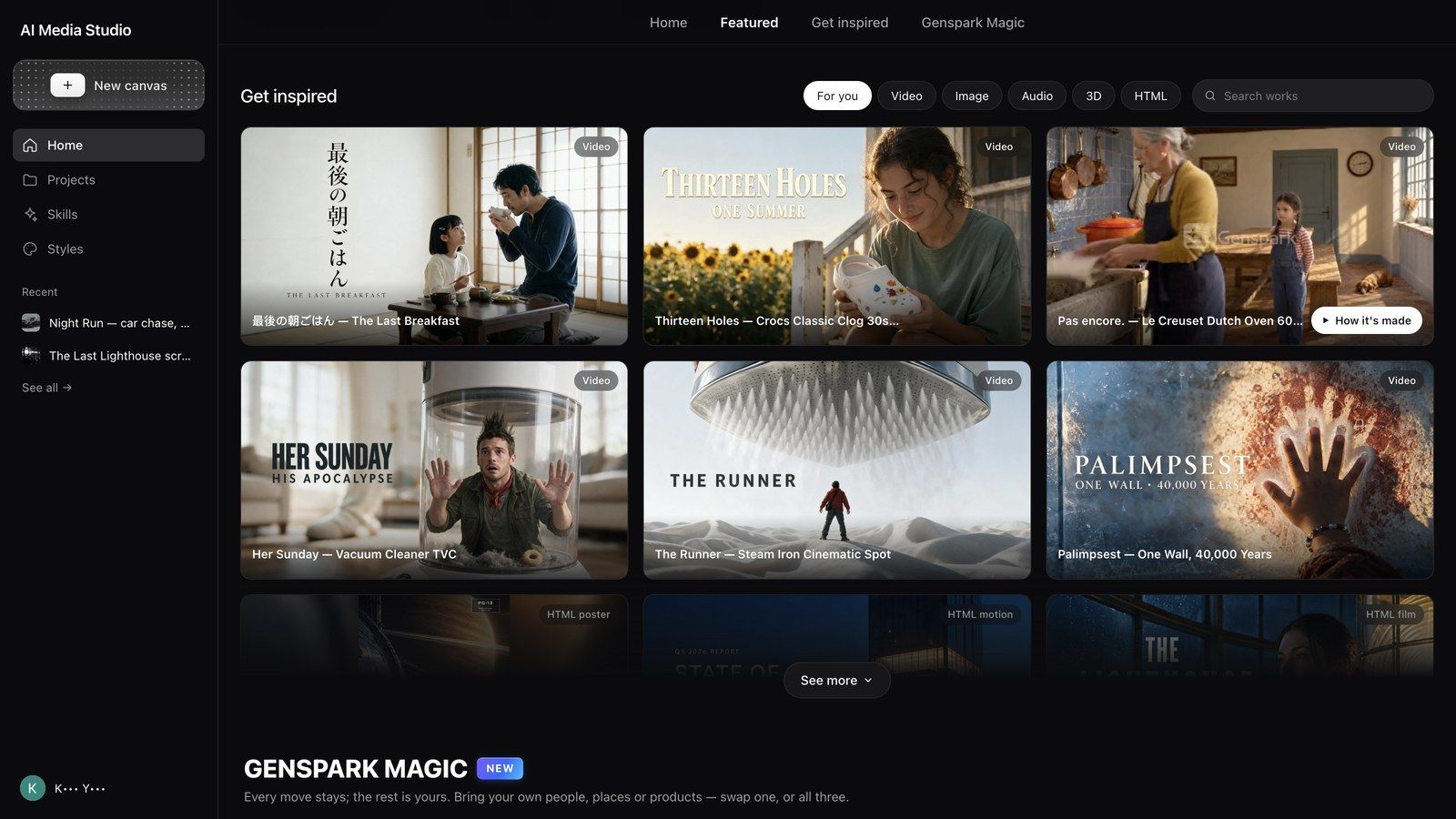
Get inspired shows finished work made in Media Studio, filtered by For you / Video / Image / Audio / 3D / HTML; Search works searches titles.
- Hover a card for How it's made; open the cover for a viewer with Make one like this (puts that piece's prompt into your composer) and How it's made.
- How it's made opens the project's read-only board: every node, connection and asset, plus two buttons — Copy & continue (copies the project into your workspace so you can keep working on it) and View conversation (the original chat).
- Sub-workbenches such as the 3D stage and the layer editor do not open on a read-only board; press Copy & continue first.
Before writing your own brief, calibrate here — copying something that works and changing it is usually faster than describing from zero. Every recipe in this guide links to the matching example.
Choosing a tier
The tier selector in the composer decides which model plans your work. It does not change the price of the media models themselves.
| Tier | What the product says | What to know |
|---|---|---|
| Standard (default) | DeepSeek V4.1 Flash — fast, economical quality for everyday media generation and image design tasks | Planning on this tier uses your weekly free quota |
| Ultra | Claude Opus 5.5 — dependable planning for complex shows and multi-step media work. Uses more credits | Multi-step productions where planning quality decides the result |
| Mega | Claude Fable 5.1 — Anthropic's most capable model, at twice the credits of Ultra. Recommended for video productions over 30 seconds | Requires AI Data Retention to be on (Settings → Data Controls) |
Switch any time; the change affects only the next message, not work already done.
Tip: start on Standard. Move up only when a piece keeps being "planned wrong" (shot order, lost continuity); a single image that looks off is usually a prompt or reference problem.
How costs work
The quota bar above the composer says it plainly: LLM and images use free quota. Video and audio use credits. Keeping those two apart explains almost every "why was I charged".
- On Standard, planning and default-quality images come out of the weekly free quota: the agent's thinking is not charged, and the default image route is not charged.
- Video, audio and 3D always use credits, whatever the tier. Price depends on model, resolution, duration and count; a configuration node shows the estimate (for example
~200) before you send. - Leaving the defaults leaves the free quota: naming a specific image model, or choosing high quality / 4K, is charged like any other generation.
- Ultra and Mega planning always uses credits; those tiers do not draw on the free quota.
- A draft costs nothing until you press Run. A draft only prepares the request; pressing Run generates and charges.
- Failures are refunded. A failed generation shows No charge and the credits come back; a successful one is charged even if you do not use it.
- Where to look: Credit Usage in your account attributes spend by product; Media Studio spend is listed as Media Studio.
When the quota is used up you can carry on with credits or wait for the reset — the bar tells you which one you are spending.
Five habits that save credits without lowering quality:
- Draft on Standard; move up only the piece that genuinely needs stronger planning.
- Explore styles with the default image model and quality; raise quality only for the pick.
- Test with one short clip, then use Smart extend for the long version.
- Use reference connections instead of rewriting the prompt.
- Approve a storyboard (Grid templates → 25-cell storyboard) or keyframes before generating video, and build long pieces in segments — reshooting one shot costs one shot, not the whole film.
Managing projects
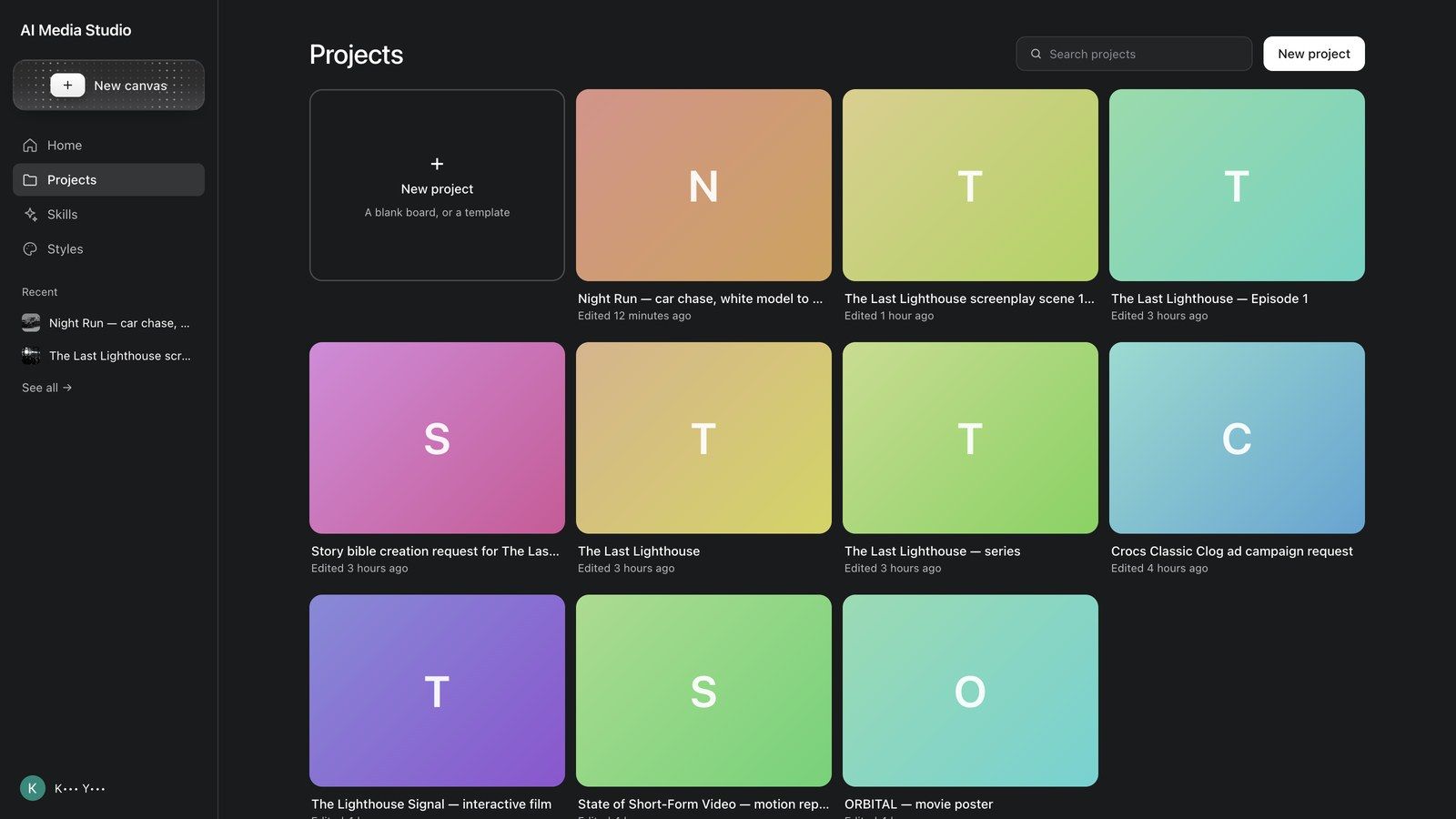
Projects lists every board you have made, most recent first.
- New project ("A blank board, or a template") starts an empty board or a template; + New in the left rail does the same from anywhere.
- Search projects filters by name.
- The ··· on a card: Rename, Set cover (opens Set cover image to pick one of the project's assets, or Reset to automatic), Delete (asks "Delete this project? This cannot be undone.").
- Recent in the left rail is the shortcut list; See all → opens Projects.
The board and image tools
What is the board?
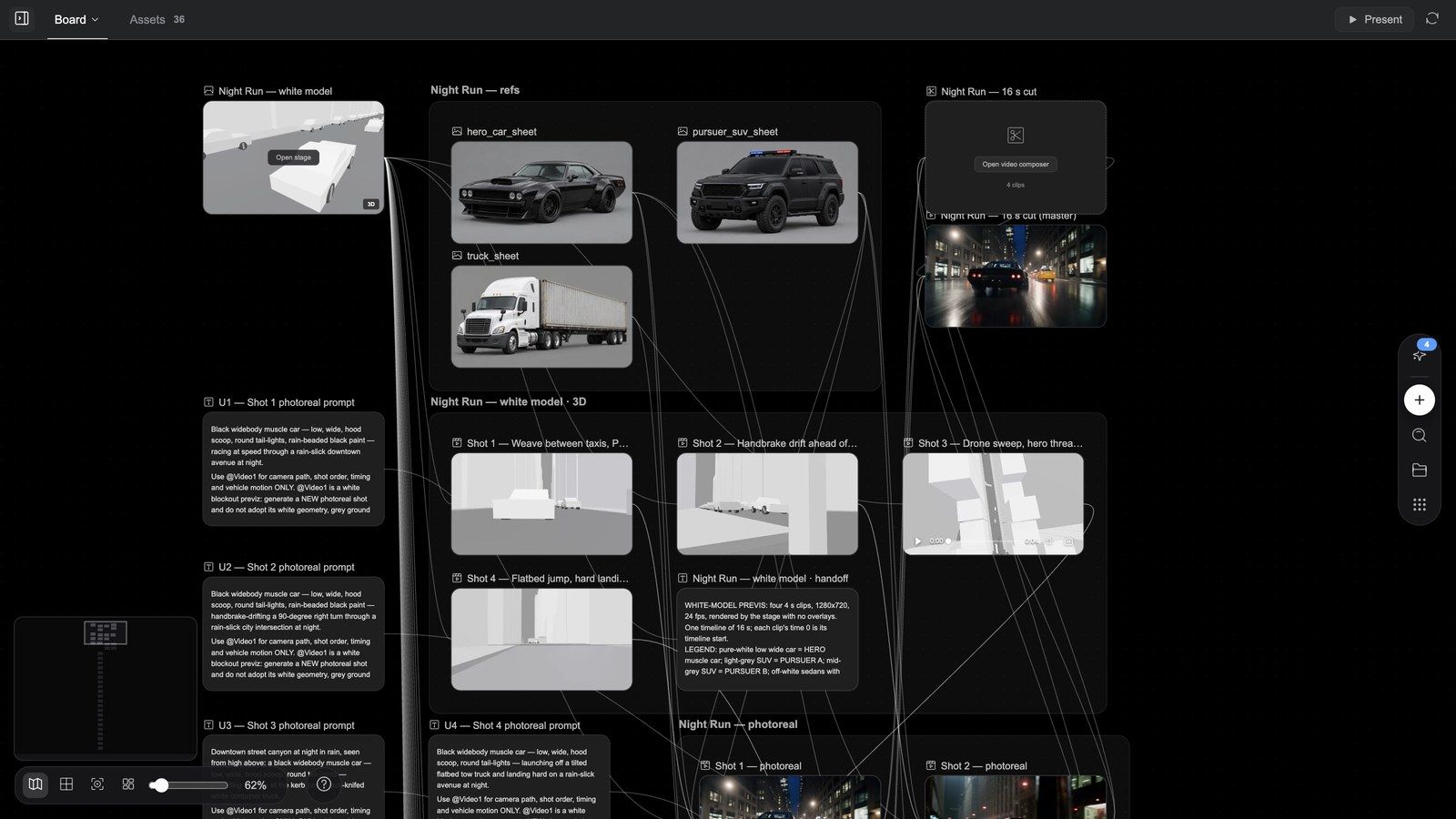
The board is Media Studio's workbench. Everything you ask the agent for ends up on it, and everything on it can be changed.
- Every output is a node. Images, video, audio, 3D, text, video composers, layer documents (Image composer), 3D director stages and HTML pages — nine node types, all on one board.
- A connection means "reference". Drag from node A's ⊕ to node B and B's next generation uses A as a reference. That is how a character, a product or a set stays consistent across dozens of shots.
- A project can hold several boards. Open the menu next to the Board tab: New board, Rename board, Delete board (you keep at least one, and a board with generations in flight cannot be deleted).
- Everything autosaves. Undo / redo work (⌘Z / ⇧⌘Z); reload or switch devices and the board is exactly as you left it.
Board anatomy
| Where | What is there |
|---|---|
| Tab bar above the board | Board (the current board's name; with several boards, click to switch), Assets (with a count), Player (appears once the agent has shown a player), one closable tab per HTML page, Questions (while the agent is asking); Story bible projects also have Story Bible and Screenplay |
| Right side of the tab bar | Present (when a composer has a cut), refresh; on the Assets tab also Search assets and Upload |
| Vertical dock on the right edge | Add node (⊕), Search nodes, Assets, Templates |
| Canvas toolbar, bottom left | Toggle minimap, Snap to grid, Fit view, Tidy up canvas, the Zoom slider, the percentage (Reset zoom), ? (Shortcuts) |
| Conversation column on the left | The chat with the agent: question cards, generation cards, skill calls; the button at its top left hides or shows the chat so the board can fill the window |
Shortcuts (press ? any time): undo ⌘Z, redo ⇧⌘Z, double-click to add a node, drag from a node's ⊕ to generate, ⌘ + scroll to zoom, pinch to zoom, scroll to pan, Space + drag to pan, middle / right drag to pan.
Cannot find a node? Use Search nodes in the dock, or click a generation card in the chat — the board flies to the node and highlights it.
Adding nodes: the ⊕ menu
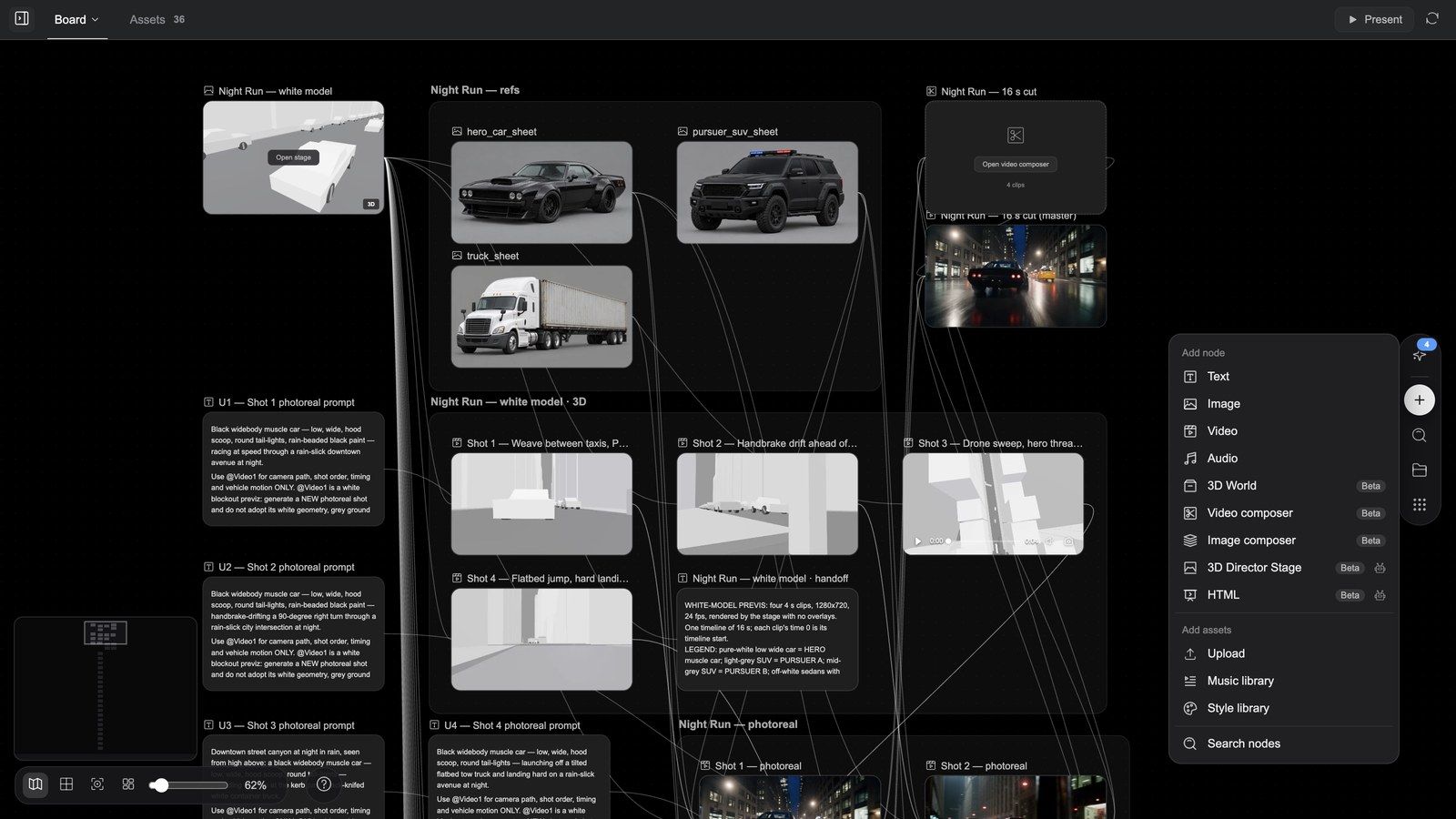
Double-click empty canvas, or press Add node in the dock:
Add node
| Entry | What you get |
|---|---|
| Text | A text node: scripts, copy, shot descriptions |
| Image / Video / Audio | An empty media node; describe what to generate in its prompt box, pick a model, send |
| 3D World (Beta) | A 3D node: a space you can orbit and walk into |
| Video composer (Beta) | A multitrack timeline (see the video article) |
| Image composer (Beta) | A blank layer document you edit in the layer editor (below) |
| 3D Director Stage (Beta, built by the agent) | A director stage: white-model previs, cameras, movement back to the board (see the 3D article) |
| HTML (Beta, built by the agent) | An HTML page: poster / motion / interactive film / app (see the 3D article) |
Add assets
| Entry | What it does |
|---|---|
| Upload | Upload images, video, audio or 3D models from your computer |
| Music library | Pick music and sound effects (All / Music / SFX / Songs; Preview, then Add) |
| Style library | Pick a style (attached to the prompt as a style fragment) |
Search nodes sits at the bottom of the menu.
Generating from a node: the ⊕ drag menu
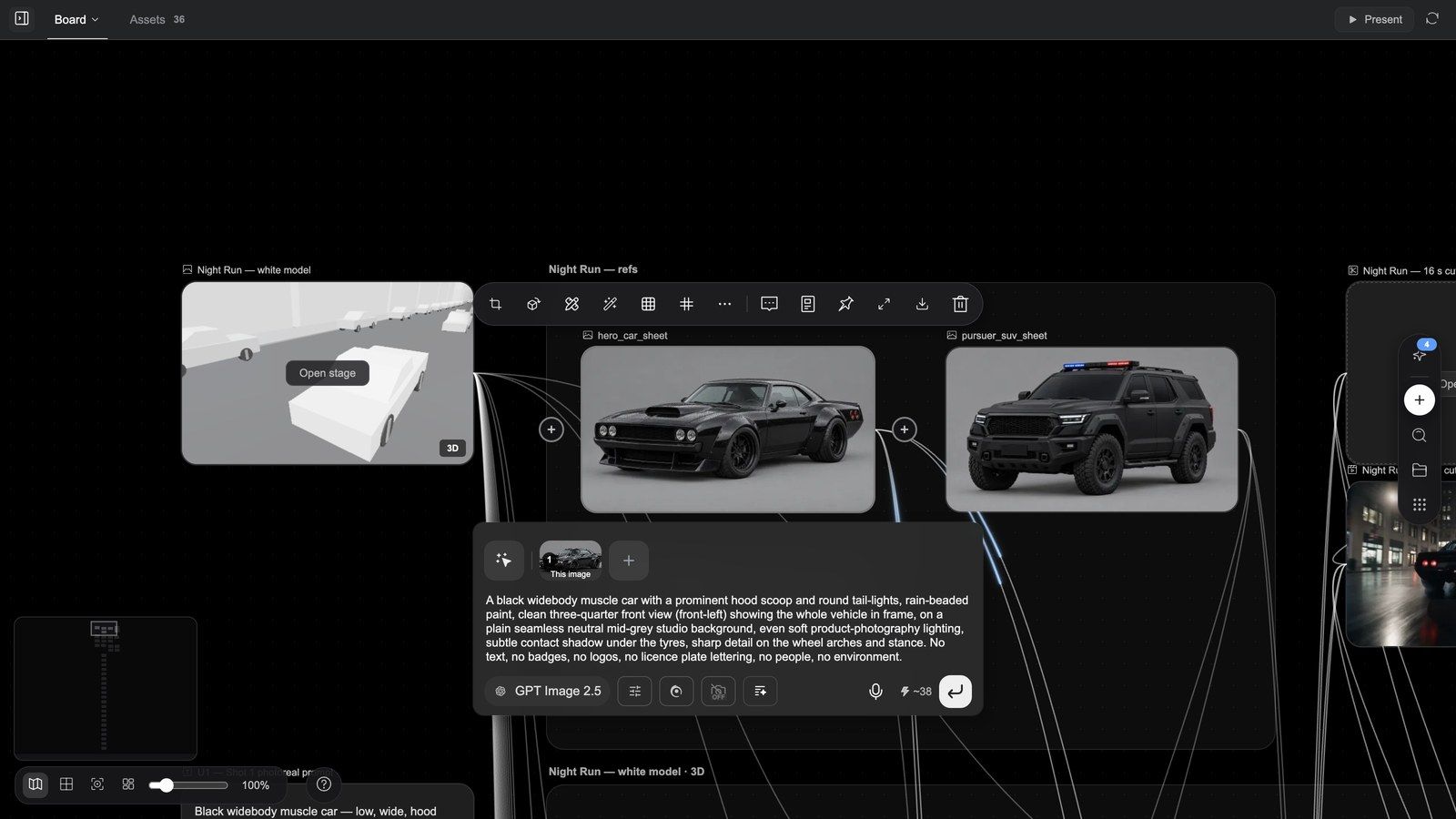
Hover a node and drag its right-hand ⊕ onto empty canvas (or click it) to get Generate from this node: Text, Image, Video, Image editor (single images only) and 3D World (or 3D Director Stage when the source is a 3D node). You get a new node with the source already connected as a reference.
Shift-click several nodes and the selection box gets its own ⊕; dragging it gives Generate from all selected nodes. With two or more images selected there is an extra group, Stitch all selected image nodes → Image editor, which puts them into one layer document.
Connections: references as discipline
Most AI tools keep consistency by re-describing everything each round. Media Studio uses connections.
- Drag from the source node's ⊕ to the target node; you get a reference edge.
- Every generation you start on the target node sends the source along as a reference (the node panel shows the numbered reference thumbnails).
- Delete the edge to stop.
Typical uses:
- Product: one product shot connected to a dozen shot nodes → the same product in every shot.
- Character: a character sheet (or a Story bible character) connected to every node it appears in → same person, new set, new angle.
- Style: one style reference connected to a whole storyboard → one grade across the piece.
- Voice: audio nodes can only be connected to a Dub configuration node, as voice references (up to 6).
Tip: more references are not better. Two or three strong references on a node are far more stable than ten weak ones.
The image node toolbar
Select an image node and its toolbar appears above it. Buttons are icons; hover for the name. Left to right:
| Tool | What it does |
|---|---|
| Crop | A crop frame on the node (rule-of-thirds grid, size readout); Confirm crop makes a new cropped node |
| Gen 3D world | Turns the picture into an orbitable 3D scene node straight away |
| Edit | Selects the node and puts the cursor in its prompt box — for changing the prompt and regenerating; not the layer editor |
| Redraw | Paint the area to change and describe what goes there; the result lands in a new node beside the source |
| Grid templates | One generation, a whole sheet: Multi-camera 9-grid, Story beats 4-grid, Face 3-view, Character design sheet, Scene design sheet, Product design sheet, 25-cell storyboard, Cinematic relight, Character 3-view |
| Grid split | Cuts a grid image apart: 4 cells (2×2), 9 cells (3×3), 16 cells (4×4), 25 cells (5×5) or Custom grid; then Select cells to operate on, Generate HD image (2× HD / 4× HD, up to 4 cells per batch) or Create storyboard group |
| More (⋯) | The advanced tools below |
| Add to chat | Drops a mention of this node into the composer so your next message refers to it |
| View prompt | The prompt that generated this image |
| Pin | Tags the asset with a colour (Red / Orange / Yellow / Green / Blue / Purple / Gray, or Remove pin) — easy to spot on the board and to filter in the Assets panel |
| Fullscreen / Download / Delete | View large, download the original, delete the node |
The More menu
| Tool | What opens |
|---|---|
| Outpaint | Pick an Aspect ratio (Free / 1:1 / 4:3 / 16:9 / 9:16 / 2:3 / 3:2) or drag the frame wider, choose resolution and count, Generate |
| Erase | Brush / Marquee Selection / Eraser over what should go (brush 1–100); generate and the object is removed |
| Annotate | Draw on the picture — Select / Paint / Erase / Rectangle / Arrow / Text, Lock base image — then "Describe changes to generate..." and Generate |
| Enhance | Topaz Labs upscaling: Mode (Standard / Low resolution / 3D & CGI / High fidelity / Text refine), Upscale factor 2x / 4x |
| Cutout | Removes the background in one click; the subject lands on a transparent PNG in a new node |
| Separate layers | Box the parts to split out (no boxes = every major element), Separate all or Separate N regions; base image + up to 16 transparent layers, billed per layer, unused credits refunded; the result is an editable layer document |
| Change angle | New camera position: 15 presets (Front View, Front High Angle, Left Profile, 3/4 Right View, Dutch Angle, Bird's Eye View, Worm's Eye View, Over Shoulder, Close-up, Wide Shot…) plus Tilt / Yaw / Zoom — the camera moves, the scene stays |
| Light studio | New lighting: 25 presets (Standard 3-Point, Rembrandt, Butterfly, Silhouette, Cyberpunk, Golden Hour, Blue Hour, Candlelight, Teal & Orange…), with Main / Fill / Back lights and Intensity / Height / Distance and colour for each |
| Edit text | Recognises the text in the image; click a text block to rewrite it |
| Regenerate | Same prompt, another take (only when the node has a prompt) |
| Add to bible | Writes this reference into a Story bible |
Models and sizes for Redraw / Erase / Outpaint: Redraw defaults to Flux Fill, Erase to Eraser, Outpaint to Flux Outpaint; all can switch to Nano Banana 2.1 or Nano Banana 2 Flash Lite. Supported models offer 1K / 2K / 4K and x1 / x2 / x4 takes.
Why does every tool make a new node? The original always survives — if you do not like the result you throw away the new node instead of damaging the source.
Tool demos
Redraw — repaint one area, keep the rest
Erase — paint out what should go
Outpaint — extend the picture
Cutout — remove the background in one click
Separate layers — split a picture into editable layers
Pin — colour-tag an asset
Add to chat — refer to the node in your next message
The layer editor: Photoshop-grade finishing
The layer editor belongs to Image composer (layer document) nodes, not to plain images. There are four ways in:
| Way in | What you get |
|---|---|
| Image node ⊕ → Generate from this node → Image editor | A layer document with that image as its base layer, connected as a reference |
| Image node More → Separate layers | A document split into layers (the card says N layers) |
| HTML poster node → Export layers | A document named " |
| Add node → Image composer | A blank artboard |
The layer document's card has Edit layers (opens the editor); its toolbar also has Export image (flattens the visible layers into a new image node without opening the editor).
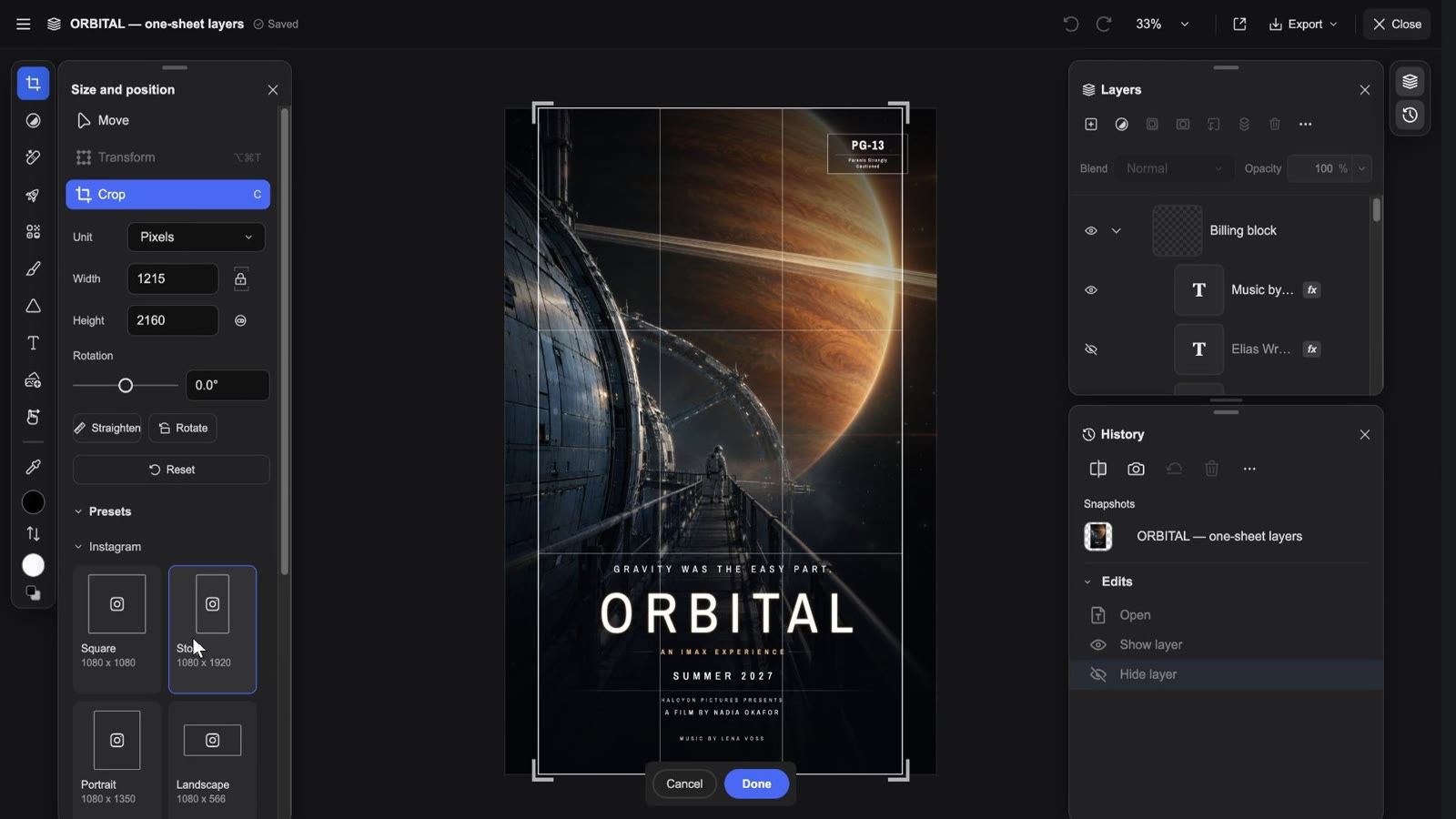
Clip: open a layer document → hide / show a layer → select a layer → the retouch and adjustment panels → crop presets → zoom → the Export menu → Export to canvas → close
What you see when it opens
Top bar (left to right): ≡ Main menu (Document / Edit / Image / Layer / View / Effects / Export as… / Import… / Settings…), the document name, the save state (Saving… / Saved), Undo / Redo, the zoom menu (Zoom in / Zoom out / 100% / 200% / Fit on screen / Fill screen), a one-click Export to canvas icon, the Export menu and Close. During an effect or a Liquify session the top right becomes Cancel / Done.
Tool rail on the left (shortcut in brackets): Move (V), Adjustments, Retouch (J), Quick actions, Effects, Paint (B), Shape (U), Text (T), Add image, Hand (H), Eyedropper (I), then foreground / background colour, Swap colors (X) and Default colors (D). Pick a tool and its options panel opens beside it:
- Move has three modes: Move (Auto-select layer, six align buttons, distribution and align-to options under Advanced settings), Transform (Free transform, Skew) and Crop (below).
- Retouch lists nine tools: Remove, Spot healing brush, Healing brush, Clone stamp, Liquify, Face, Lighten (Dodge), Darken (Burn), Saturation (Sponge). Remove has Brush size, Sample all layers and Remove after each stroke; the healing / cloning tools need Set source first, sampling Current layer / Current and below / All layers.
- Adjustments: a row of Presets, then Brightness/Contrast, Hue/Saturation, Exposure, Vibrance, Color Balance, Black & White, Gaussian Blur, Levels, Curves, Invert, Brightness and Color, Solid Color.
- Quick actions → Detect objects finds the subjects and shows the Object selection bar: Deselect / New layer / Remove.
- Paint: Brush / Eraser / Paint bucket / Gradient / Smudge.
Right side: two panels, switched from the thin rail on the edge:
- Layers: a header row with New layer, Adjustment layers, Layer styles, Create mask, Create clipping mask, Arrange, Delete layer, Layer actions (⋯: Group / Ungroup / Merge down / Merge visible / Flatten image / Rasterize…); below it Blend (27 blend modes) and Opacity; every row has an eye (show / hide), a lock and fx; drag to reorder, double-click a name to rename.
- History: hold Show original to compare, Create snapshot to keep a version, return to any entry under Snapshots, and Revert to the opened state.
Cropping
Move → Crop (shortcut C): pick a Unit (Pixels / Inches / Centimeters / Millimeters), set Width / Height (lockable ratio, swappable), drag Rotation (−180° to 180°) or Straighten; Presets holds the social sizes — Instagram (Square / Story / Portrait / Landscape / Profile photo), Facebook, TikTok, YouTube Thumbnail, LinkedIn, X — and Photos ratios Square / 2:1 / 3:2 / 4:3 / 5:4 / 7:5 / 16:9. Esc cancels; apply and keep editing.
Exporting and saving
- Export → Download PNG: one flattened image.
- Export → Download PSD: a layered Photoshop file (layers, groups, masks, blend modes, adjustment layers and guides are kept).
- Export to canvas: flattens the current state into a new image node on the board, downstream of the document; the editor stays open and shows "Exported to the canvas as a new image node" with a View node button.
- Autosave: every change is saved as you go; Close first applies any unfinished crop, transform or text edit. There is no Save / Cancel.
Common mistake: pressing Edit to "open the image for retouching" — that only focuses the prompt box. To reach the editor, use ⊕ → Image editor, Separate layers, or a poster's Export layers.
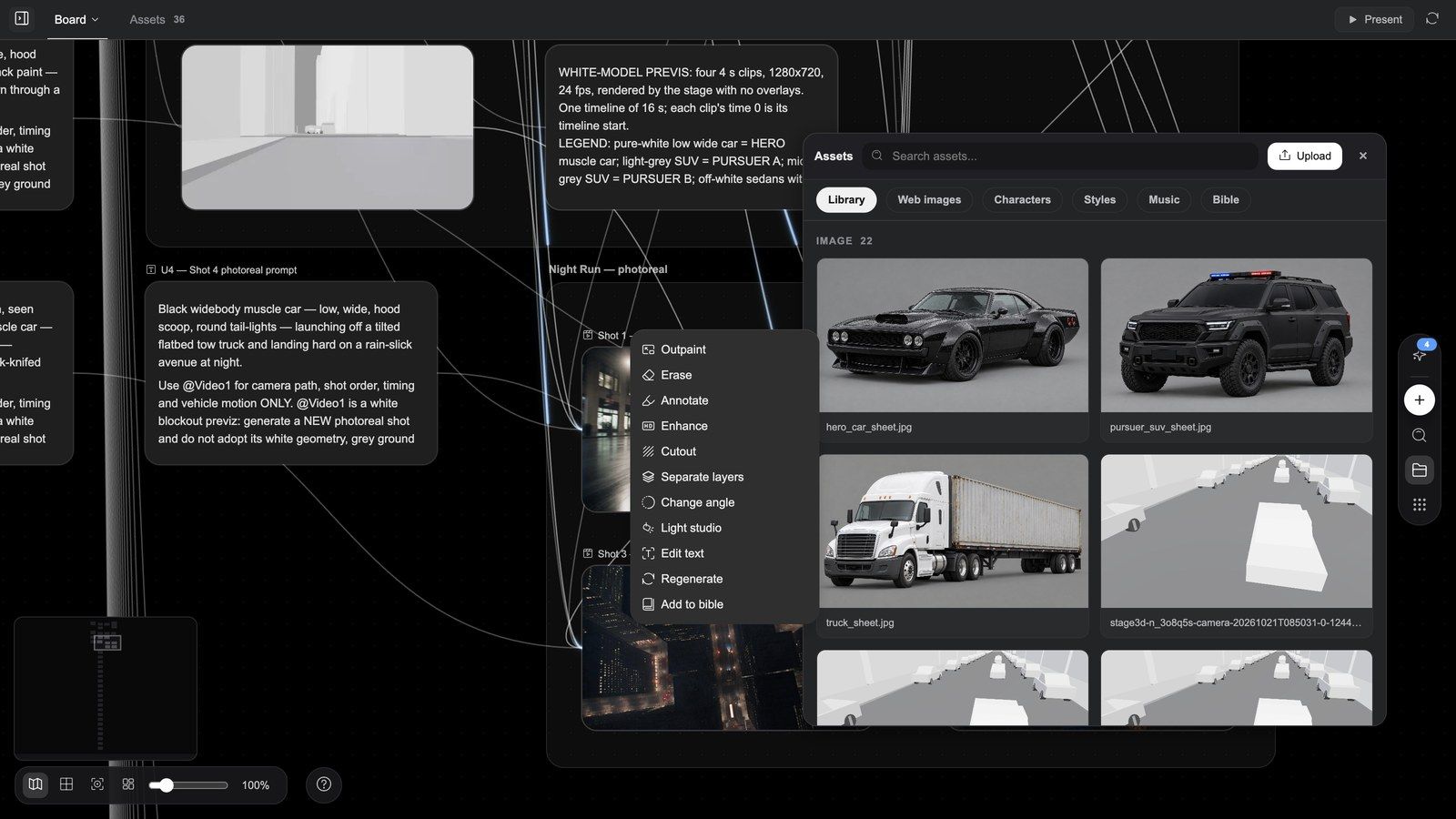
The Assets panel
The Assets tab (and Assets in the dock) is your asset hub:
- Six sources: Library (this project), Web images, Characters, Styles, Music, Bible (a Story bible — Choose a bible first).
- Grouped by type: Image / Video / Audio / 3D / Text / Other.
- Search assets, Upload (or just drop files in); in Library, Pin colours can be used as a filter.
- Select several and the bar shows N selected: Add to board, Download, Delete, Clear selection. Over 500 MB the download says "Selection is too large to zip. Files are downloading one by one."
- Anything picked from another source becomes a node of this project once it is on the board.
Tip: assets belong to a project. To reuse a character or a style across projects, put it in a Story bible rather than copying files.
Video, dubbing and the finished cut
The video node toolbar
Select a video node and its toolbar appears above it. Buttons are icons; hover for the name. A node that is still generating has no toolbar, and a failed node offers only Retry and Delete. Every tool produces a new node and leaves the source alone, so you can experiment freely.
| Tool | What opens | When to use it |
|---|---|---|
| Trim | A filmstrip under the node with a 5-second selection; drag the ends, then Confirm trim. The strip also has Mute preview, Snap to whole seconds, Loop preview inside the selection and a shortcut sheet (← → move the selection, Shift for precision, ↑ ↓ grow / shrink, I / O set in / out, Space preview, Enter confirm, Esc exit) | Only part of a clip is usable; trimming first makes every later tool faster and cheaper (up to 600 s) |
| Reshoot clips | A video configuration node locked to Seedance 2.5, with a multi-range strip: up to 5 ranges of at least 4 s (N/5 clips); the prompt is prefixed with "Rework |
The performance or picture is wrong but the blocking and camera are right: keep the movement and camera, re-render the whole clip |
| Crop | A crop box on the node, Confirm crop | Vertical or square versions of the same footage |
| Enhance | The Video enhance panel: model Topaz Labs, Upscale factor 2x / 4x (with the Output size), Frame rate (optional) Auto or 60fps, a credits estimate; takes 5–10 minutes | Even out sharpness before the final cut; rescue old footage (source ≤ 60 s, output ≤ 4320p) |
| Depth motion capture | A card with Resolution 480P / 720P and Confirm extract; you get a depth-map video titled "Depth motion capture- |
The movement is good but the people and the place must change: treat the motion as a reusable asset and connect it to a new video node (≤ 60 s) |
| Shot breakdown | A "Shot breakdown" text card: tick Shots / Motion / Music under Breakdown dimensions, Start breakdown; the shot list fills the text node, and keyframe stills, the motion analysis and the extracted music arrive as their own nodes | Remaking a long piece shot by shot, or pulling the shot language out of a reference |
| Smart extend | First a toast, "Pick the prefix segment the continuation will follow"; box the opening to keep on the strip, Confirm extend; a Seedance 2.5 configuration node appears with "Continue the |
Stretching a 5-second clip to 10–15 seconds |
| Audio separation | A submenu: Detach audio (an audio node plus a muted copy of the video), Keep vocals only, Keep background only (one new audio node each, ≤ 300 s) | New music under the same voice, or the other way round; or a clean voice to use as a Dub reference |
| Dub | See the next section | New language, new voice, rewritten lines with music and effects remade |
| Frame edit | A submenu: Replace (Object replacement: Select from canvas or Upload from device the replacement, then draw a box on the video around the Object to replace) and Remove (Object removal: Add mask around the Target) | One object has to go or change without regenerating the clip (≤ 30 s) |
| More | Regenerate (nodes with a prompt), Add to bible |
The right-hand group is the usual set: Add to chat, View prompt, Pin, Fullscreen, Download, Delete. The node's own playback bar also has Capture frame (Capture current frame / Capture first frame / Capture last frame); captured frames are new image nodes. A Seedance 480p draft carries a 480p draft tag and a Render 1080p button.
Suggested order: Trim first → then picture tools (Reshoot / Frame edit / Enhance) → then the composer for editing, subtitles and voice.
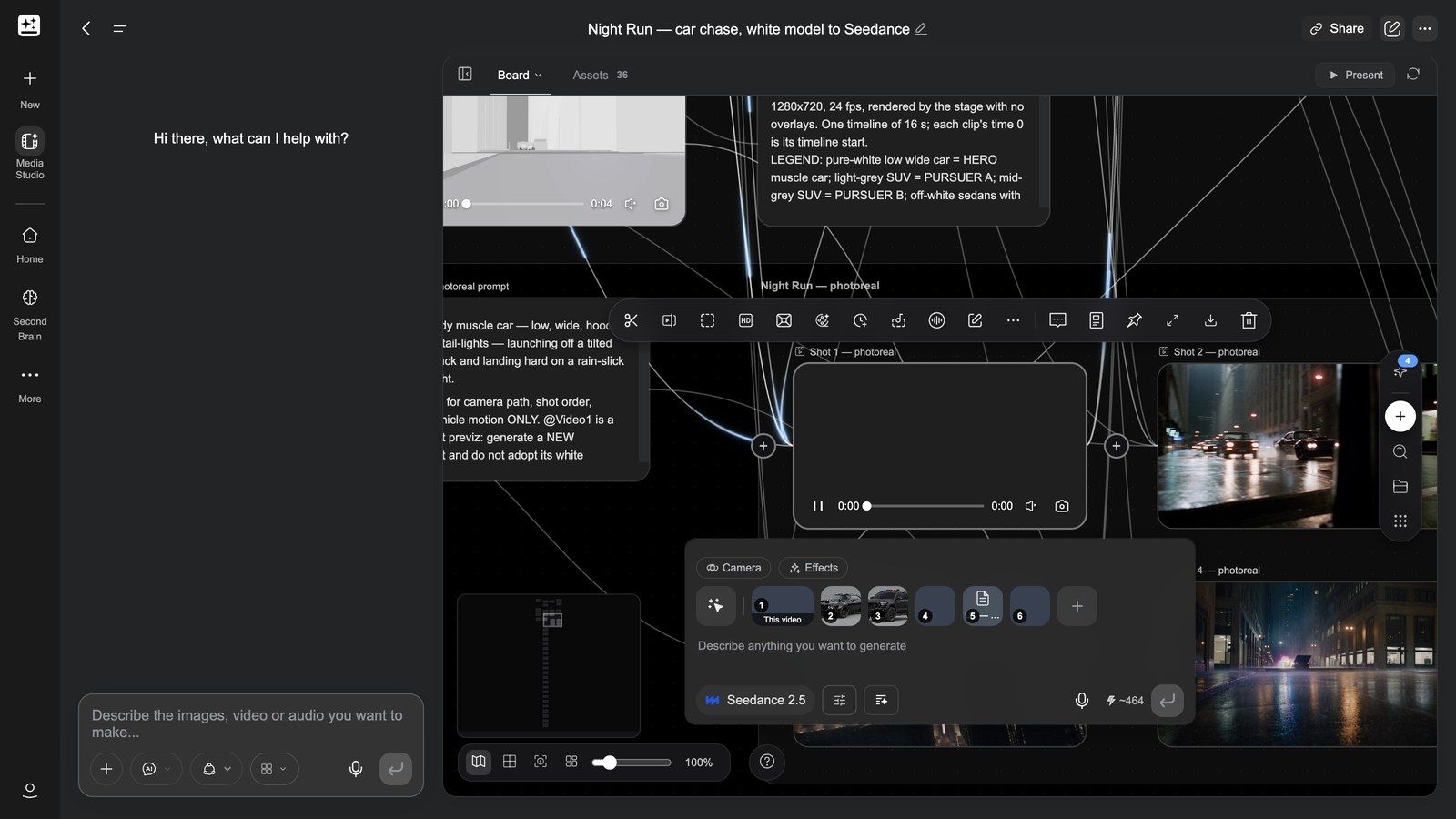
Depth motion capture — turning movement into a reusable asset:
Dub: re-voice the whole clip, get editable tracks back
Dub is not "swap the voice". It remakes the entire soundtrack of a clip — lines, music and effects together — and delivers a video composer with three separate audio lanes, not a baked-in mix.
What Dub can do (88 s, with sound): a clip with no sound and one brief, and the whole soundtrack is scored to the picture — two hosts in dialogue, a live band and a sung line, a full room's applause and clinking glasses, cockpit comms in a launch sequence — and it comes back as three tracks, not a baked mix.
The whole flow in 77 seconds (narrated): a clip on the board → select it and press Dub → quote the lines word for word, then describe the music and effects → connect audio nodes for a particular voice (up to six) → send, and the node itself becomes a composer → Dialogue / Sound effects / Music on their own lanes, the clip muted on the main track → mute, trim, split → Export to canvas for a Final cut node, or a Premiere / CapCut project → every stem lands in Assets.
Step by step
- Select the video node and press Dub. An audio configuration node appears on the board with the clip already connected as its reference; the model is fixed to Seed Audio 1.5 and the panel shows the credits estimate.
- The panel states the rule: "Quote every spoken line word for word — the model only voices what you write. Then describe the music and sound effects. Dialogue, sound effects and music arrive as separate lanes on a video composer." Write the brief accordingly:
- quote every spoken line verbatim, in quotation marks — the model voices only what you wrote and never invents lines; if there is no speech, say "no speech";
- then describe the music and sound effects (style, mood, what happens when).
- The panel's own example:
Narrator (warm, calm): "Every great film starts with a story." Soft piano music; gentle UI click sound effects.
- For a particular voice, connect audio nodes to the configuration node as voice references — the only audio-to-audio connection the board allows; up to 6 voices, and only one video.
- Send. When the generation finishes, the node itself becomes a video composer titled "
dub": the original clip on the main track (its own audio muted), then Dialogue, Sound effects and Music lanes in that order. If the stems cannot be split you get a single Mixed lane.
What you can do with it
- Press Open video composer and treat the three lanes like any other clips: move, trim, Split, change speed, Mute track audio, delete.
- For another take, do not rerun inside the composer — go back to the original video node and press Dub again.
- The whole mix exports through the composer's Export; each stem is also saved as a project asset under its lane name and appears in Assets.
Typical uses
| Scenario | How |
|---|---|
| Release in another language | One source clip → Dub with the lines in the target language → a target-language Dialogue lane; keep or replace the Music lane |
| New narrator | Same verbatim lines, a different voice reference |
| Rewritten voice-over | Change the lines in the brief; music and effects are remade to match |
| Several ad versions | Same picture, Dub a 15-second and a 30-second set of lines and music |
The thing people miss: the lines must be verbatim. A brief that only paraphrases is refused with "Seed Audio needs the exact spoken lines: quote every line of dialogue or narration in the brief (or say there is no speech)." A clip can be at most 180 s / 512 MB — Trim first if needed.
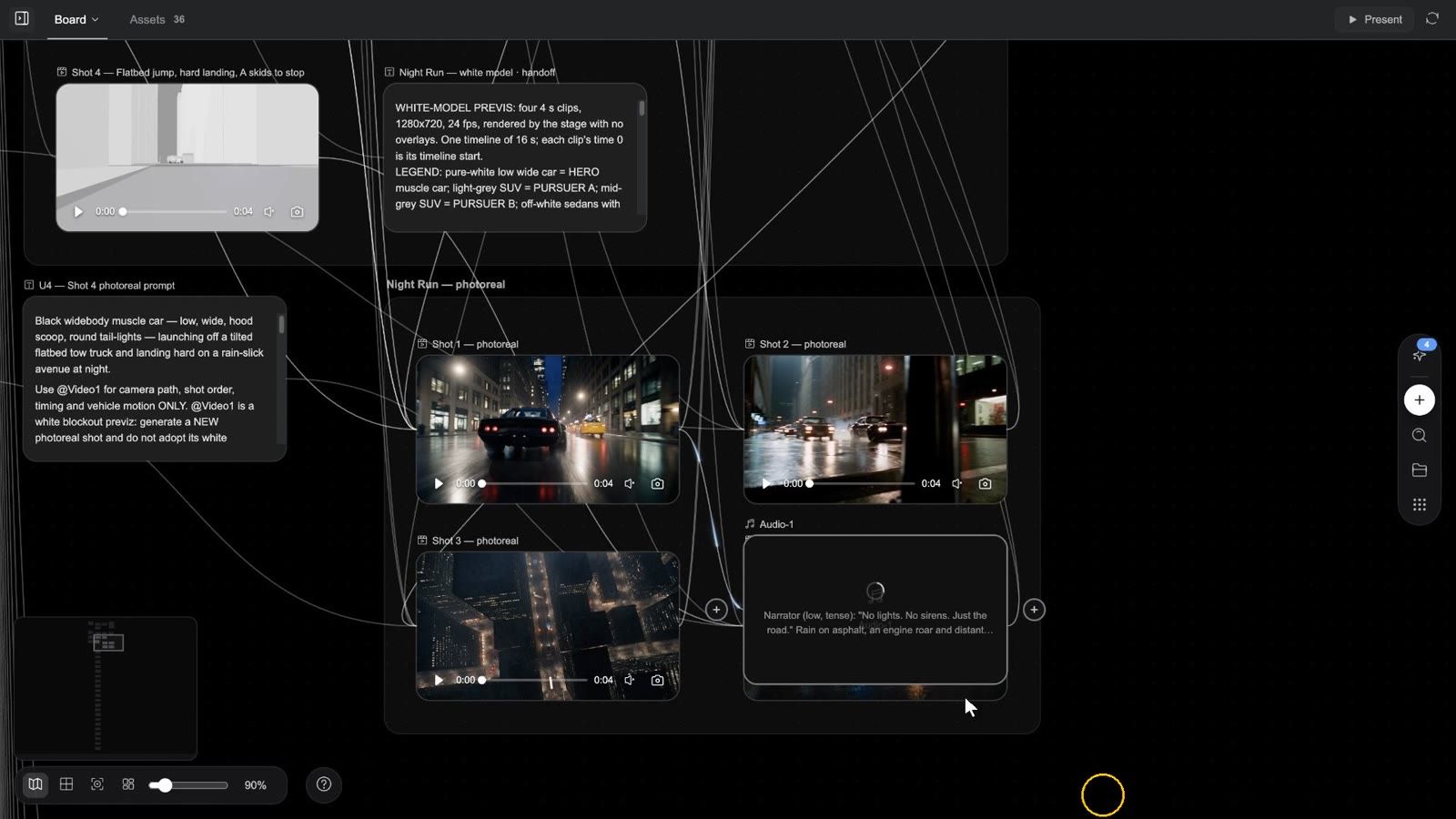
The video composer: cutting the finished piece
Clip: open the composer → play → move the playhead → select a clip → Split → Speed → add a subtitle in the subtitle panel → Apply to all → Export → Export to canvas → the Final cut node appears on the board
Getting started
- Add node → Video composer (Beta).
- Drag video nodes' ⊕ onto it; the clips line up on the timeline in order and the card shows N clips. Inside the composer you can also Add media from Project assets, or drop files straight onto the timeline.
- Press Open video composer on the card. The toolbar has the same button plus Export video (Export audio when only audio lanes have clips).
What you see when it opens
- Header: the title Video composer (Audio editor when there is no picture), the Export menu, Close.
- Preview: the current frame; under it the current time, play / pause, the total length and Fullscreen preview.
- Deck toolbar, left: Undo, Redo, Split, Trim left, Trim right, Subtitles (toggles the panel), Add media, Speed. Split and Trim need the playhead inside a clip (otherwise the tooltip says "Move the playhead inside a clip…"); Speed needs a selected clip (Rate 0.25x–4x, or type a Duration).
- Deck toolbar, right: Snap (toggle), Zoom out / slider / Zoom in, Collapse preview.
- Tracks, top to bottom: the subtitle rail (eye icon Hide subtitles / Show subtitles), overlay video lanes, the main video lane, audio lanes. Video and audio lanes have Mute track audio / Unmute track audio.
- Right-click a clip: Locate on canvas, Copy, Paste, Detach audio (video clips that still carry their sound), Delete; right-click a subtitle: Delete subtitle.
- Keys: Space play / pause, ⌘Z / ⇧⌘Z undo / redo, ⌘C / ⌘V copy / paste, Delete, Esc closes.
Subtitles
Subtitles opens the right-hand panel. On the Subtitles tab: Search subtitle text and + New subtitle. Select one and the Text tab shows the text box (Enter subtitle text), Font (PingFang SC / Noto Sans CJK SC / Helvetica Neue / Arial / Songti SC), Size (12–96 px), six Preset styles, Apply to all subtitles and Delete subtitle.
Exporting
The Export menu has exactly two groups:
| Group | Option | What you get |
|---|---|---|
| Export to | Export to canvas | A server-side render (the size of the first clip, 30 fps, mp4 — m4a for audio-only) that lands on the board as a new node, " |
| Project file | Export Premiere project / Export CapCut draft | A zip download: FCP7 XML + README for Premiere, draft_content.json + README for CapCut — hand it to an editor |
There is no resolution or format picker and no "export to device" — download the finished file from the Final cut node.
Limits: 9 tracks, 1000 clips, a 20-minute main track and a 21-minute composition, 500-character subtitles, speed 0.25x–4x; three renders per project at a time ("This project already has 3 renders running — wait for one to finish").
Why cut here rather than in an external editor: footage, subtitles, voice and music live in the same project, so a revision needs no download / upload — and when you do hand off, you get a Premiere or CapCut project.
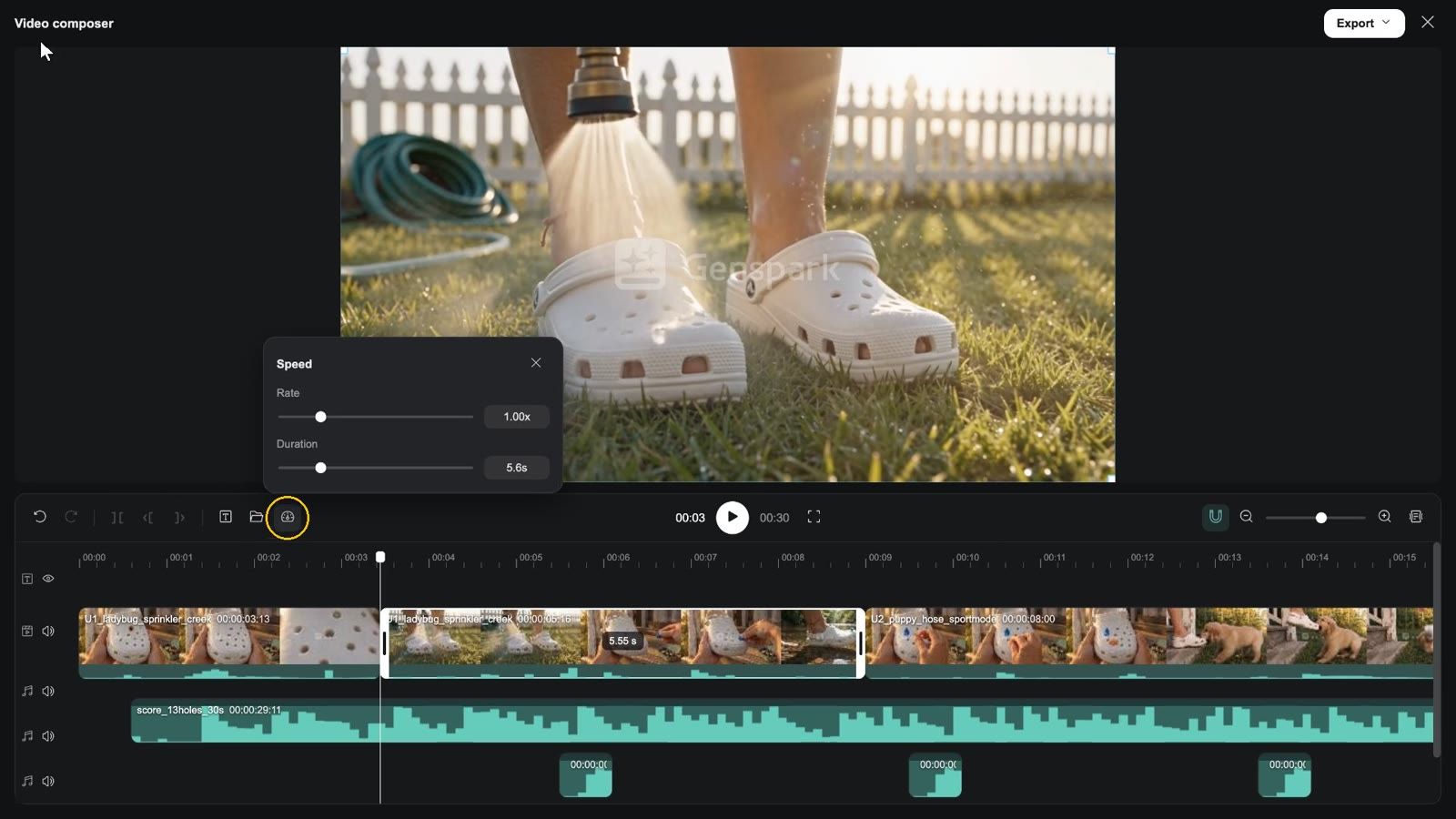
Post-production: title cards, captions and data overlays go to Motion
The composer joins clips, adds a subtitle bar and music, and exports. When a frame must be exact — a title card, a lower third, brand type over footage, captions synced word by word to the narration, numbers and charts, the logo at the end — hand it to an HTML Motion node, the board's After Effects: connect the video node you want to work on, describe the overlays in Motion Studio in a sentence, Render a new video node (the original clip stays untouched) and drop it back into the composer. Capabilities and usage: Motion: the board's After Effects; step by step: recipe 17, a post pass over footage.
Present: play the cut full screen
As soon as one composer in the project has clips on its timeline, Present appears on the right of the board's tab bar: with one composer it opens the player page in a new tab; with several, a dropdown lets you pick. The page has Play, View board and Fullscreen preview. If the linked composer has since been emptied you see "This project has no video composition to present."
Slides / Design pages into a narrated video
Already have a deck in AI Slides, or pages in Design? They can become a narrated video — each page turns into an animated shot, the voice-over reads the script, and the shots are assembled in order.
How to start: say where the pages come from and what the video is for, for example:
Turn my Slides deck "Q3 business review" into an 8-minute narrated video with a calm male narrator, with a short intro and outro between sections.
What actually happens
- Import: the pages are copied from the Slides or Design project into this one; every page compiles into an animated page node (Design's static poster pages are kept as stills and left out of the video by default).
- One round of questions: script changes, whether you want a presenter, what they look like, which model, and whether the animation is "compiled" or "timed to the narration".
- Narration: voice-over per page (Slides uses the speaker notes; Design pages have none, so the script is drafted from the page copy and shown to you first).
- Animation: Compiled (elements appear in reading order, ready in minutes) or Timed to the narration (each element lands when the narrator reaches it; slower with many pages).
- Render and assemble: every page renders to a clip and the clips are joined; a presenter can appear as interstitial segments between chapters or as a corner window lip-synced on content pages.
Limits: a single assembly over 20 minutes is refused (split it); to change one page's animation, open that page's Motion Studio, describe the change, and re-render only that page.
3D and HTML pages
The 3D director stage: previs first, render second
Its one job: lock the spatial relationships before you spend credits on video.
Blocking, camera moves, occlusion, where several people or cars are relative to each other — the things words get wrong — are laid out physically as a white model on the stage. You watch the white-model previs, confirm the cameras and the movement, then send that movement back to the board to drive the final render. What you save is not one generation but the cost of reshooting a whole sequence.
Clip: open the stage → look through the master and two shot cameras with the camera picker → play the previs → orbit in Director view → set a camera as Active under CAMERAS → Frame to board → Movement to board → close; the board now has a still and the previs video
Getting started
-
Add node → 3D Director Stage (Beta, built by the agent). A node with a 3D badge appears; its only button is Open stage.
-
Press Open stage. The stage opens full screen (the first time you see "Opening the director stage…"): the stage's own conversation on the left, the 3D viewport on the right.
-
Describe the scene in "Describe your scene..." at the bottom left (who, where, how they move, how the camera moves) and send. The stage agent defaults to the Ultra tier. If you need a start, the empty state offers Help me think of one / Create a world from a scene image / Build a previs from a storyboard / Start from a URL, like a product page.
-
The agent builds the scene as a white-model previs: people are cylinders or boxes at real height, the set is grey blocks — volume and movement only, no textures or lighting. It creates one camera per shot (and keeps a master camera) and reports in a few lines when it is done. This step costs almost no media credits, yet it shows whether the space works.
The sentence that matters in the brief: say "white model, movement and camera only" explicitly. Without it the agent may dress the set (neon, rain, reflections), and the video model will then imitate the look instead of the motion. The Night Run example's brief opens with "PURE WHITE-MODEL PREVIS: no colour, no textures, no materials…".
What you see when it opens
Top bar (left to right)
| Control | What it does |
|---|---|
| Director view | Back to the free camera (drag to orbit; hovering shows the keyboard hint: W A S D move, Q E down / up, Shift faster) |
| Camera view ▾ (camera picker) | Lists the cameras the agent created; pick one to look through it; "Add a camera first" while there are none |
| ↻ | Reload the stage from its files |
| 16:9 ▾ | Aspect: 16:9, 9:16, 1:1, 4:3, 21:9, 3:4 |
| Frame to board | Renders one still from the Active camera (1920 px on the long edge) and adds it to the board as an image node; toast "Frame added to the board" |
| Movement to board | Renders the whole timeline through the Active camera (1280 px long edge, rendered in your browser, status "Rendering video…") and adds it as a video node; toast "Video added to the board" |
| Draw | Draw on the frame and drop sticky notes; Queue them or Send straight to the agent (up to 10 queued) |
| Panel icon / × | Show / hide the Inspector; close the stage (Esc works too) |
Inspector on the right: with nothing selected it reads "Click something on the stage or pick it from the outline below to inspect it. Ask the agent to build, move and light the scene." Below are four collapsible sections:
-
SETTINGS · n — the switches, colours and sliders this particular stage defines (they come from the agent's code and differ per stage).
-
CAMERAS · n — the camera list (with FOV). Click a row to look through it; the selection shows Look through, Set active (the Active camera is the one Frame / Movement to board use), the FOV slider and Position / Target. Each row has an @ (Mention in chat) that inserts @camera:
into the chat so you can point the agent at it precisely. Cameras are created by the agent only — ask for one in the chat. -
OBJECTS · n — the objects on the stage. Click a row, or the object in the viewport, to select it: Visible, Position / Rotation / Scale, Size. Also with @.
-
ASSETS — Upload a file (GLB, textures, HDR, audio…) from your computer (.glb / .gltf / .obj / .fbx, textures, HDR, audio; 100 MB per file); On this stage lists this stage's files, with Place next to .glb files; Board library · 3D lists the 3D models already in the board's library, also with Place and @.
Player at the bottom: Play / Pause, Loop, the time readout (for example 7.53 / 16.00), a scrubber, @ (Mention this moment in chat, inserting @time:7.5s — "by now the car should be past the corner" is one click away) and full screen (hides the controls; Esc brings them back). The timeline defaults to 10 s at 30 fps; the agent can change it.
In the conversation on the left the agent's work shows as cards: Render camera move · 0s–4s (renders one camera's span to a video in the stage's renders folder), Export to board (sends a set of stills / videos to the board as a group titled " · 3D", together with a "handoff" note) and Report Result (the run's conclusion). Frame / Movement to board, pressed by you, make single nodes without a handoff note.
From previs to the real shot
-
On the board, drag the previs video node's ⊕ → Video; pick a model that takes a motion reference (Seedance 2.5, for instance), same aspect as the previs.
-
In the prompt, say what each block is, and name them by their position relative to the camera ("the brightest block furthest from camera is the fleeing black sedan; the one nearest the camera with the roof bar is the police cruiser, it stays behind the whole time") — not just by colour. The video model follows the previs motion but assigns roles freely.
-
Generate. In the Night Run example each of the four cameras produced a previs clip, each clip became a photoreal shot, and the shots were cut into a 16-second sequence in the video composer.
Importing your own 3D models
A .glb exported from Blender, C4D or any other tool goes straight onto the stage: Inspector → ASSETS → Upload a file; when the upload finishes it is placed automatically (" is on the stage"). Or upload the glb to the board as an asset first and Place it from Board library · 3D. Once on the stage it behaves like the agent's own blocks — select it, move it, frame it. 3D nodes generated with Tripo and similar tools show up in the same library.
When the stage is worth it: multi-person blocking, chases, moving through interiors, a product with a fixed relation to its surroundings, several versions of the exact same camera. A plain portrait or a product close-up does not need it.
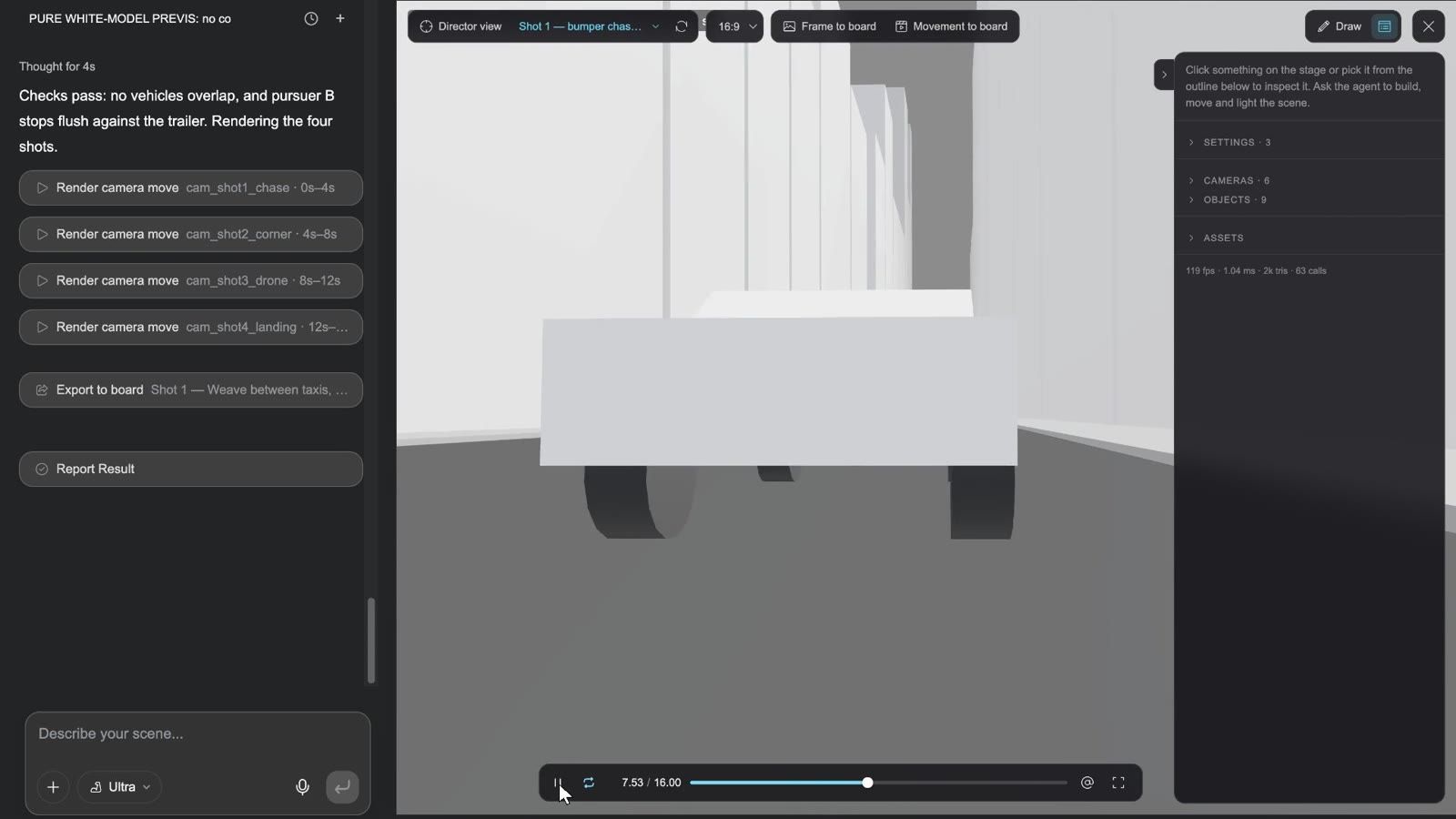
Official examples: Night Run — car chase, 3D stage to Seedance in Get inspired was made exactly this way — four camera moves locked on the white stage, then sent to Seedance for the real shots. Florida House — floor plan to 3D cutaway shows another use: a floor plan turned into a top-down render, then rebuilt on the stage wall by wall as a furnished 3D cutaway, exported as top-down and 45° bird's-eye stills.
The director stage in 30 seconds:
3D worlds and rigging
-
3D World (Add node) / Gen 3D world on an image: a space you can orbit and walk into, generated from a description or a picture; the result is a 3D node with a walk-through view.
-
Rig skeleton: automatic skeleton rigging for animation. Scope matters: it works only on models generated with Tripo, and only on characters / creatures; uploaded models, 3D worlds and already-rigged results cannot be rigged.
HTML pages: three kinds, each with its own Studio
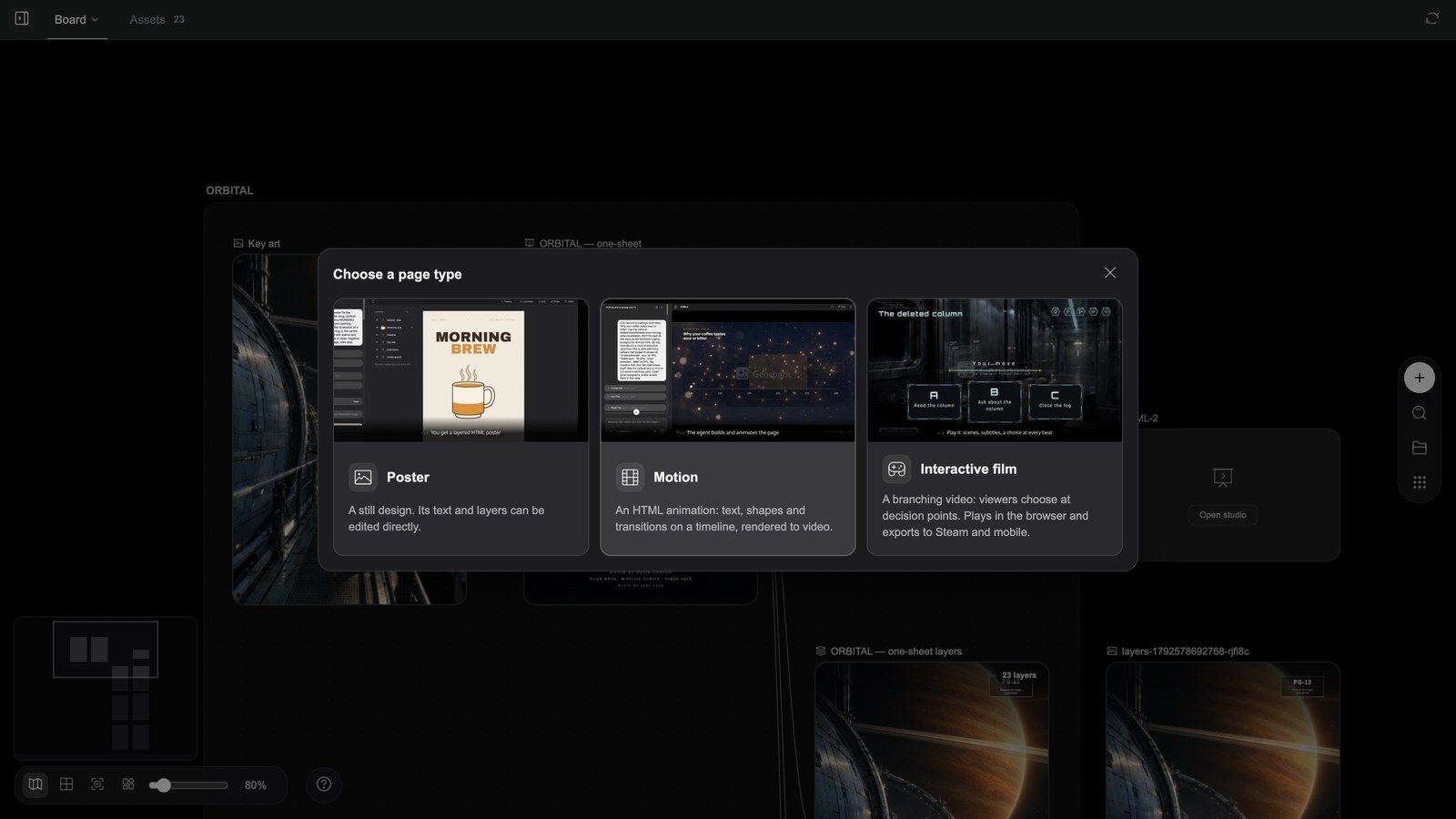
An HTML node produces a page that plays and responds, not an image. Add node → HTML (Beta) places a blank card whose only button is Open studio; the first time you open it, Choose a page type asks:
| Kind | The dialog's description | Canvas | Its Studio is called |
|---|---|---|---|
| Poster | A still design. Its text and layers can be edited directly. | 1080×1620 | Design Studio |
| Motion | An HTML animation: text, shapes and transitions on a timeline, rendered to video. — the dialog undersells it; it is the board's After Effects, see below | 1920×1080 | Motion Studio |
| Interactive film | A branching video: viewers choose at decision points. Plays in the browser and exports to Steam and mobile. | 1920×1080 | Interactive Studio |
Each card plays a short preview on hover. Only Interactive film has a second step, Choose the film's UI theme: Classical (ink and gold-lacquer carvings, vermilion seals — period drama, wuxia, court intrigue), Sci-fi (gunmetal panels, cyan light bars — space, cyberpunk), Fantasy (thin gold lines, amethyst ornaments, talisman seals — cultivation, high fantasy, myth) and Modern (frosted glass, hairline borders, a neon-pink accent, chat-bubble choices — urban, romance, horror, crime). The theme is decided once; its kit goes into the film's theme folder and can be restyled in the Studio later.
The Studio opens as soon as you choose ("Opening studio…"), with a one-line placeholder on the page such as "Describe your poster in the chat". The empty Studio offers a few starters that fill the composer: for posters A launch poster from a short brief / Set my copy as a typographic poster / Restyle the current poster; for motion Animate this page in reading order / A 6-second title card / Time the motion to the narration; for films Write the story graph from my clips / Plan the segments I still need / Restyle the cover and choices.
There is a fourth kind, App (a self-contained interactive page: a game, a tool, a prototype). It is not in the dialog — the agent creates it when a task calls for it — and its Studio is App Studio.
The node toolbar follows the kind (Fullscreen and Delete are always on the right):
| Kind | Toolbar |
|---|---|
| Poster | Export layers, Design Studio |
| Motion | Render, Motion Studio |
| Interactive film | Export build, Download build (once a build exists), Interactive Studio |
| App | App Studio |
A node whose agent-written brief has not run yet shows Run first. Fullscreen runs the page (poster / film / app) or plays the composition (motion).
Posters: still a design file when you are done
Clip: poster node → Export layers → a layer document appears on the board → Edit layers opens the layer editor → change a layer → Export to canvas
Inside Design Studio
Design Studio opens full screen: the poster's own conversation on the left, the page on the right.
-
First tab row: Hide chat / Show chat, Design Files, the file tabs, Questions when the agent asks; on the right Export ▾ (Export image, Export PSD — one layer per poster layer — and Export layers to board) and Present.
-
Second row: Reload preview, Tweaks (ask the agent for adjustable controls), Comment (comment on an element of the page), Edit (a right-hand drawer: click anything on the canvas to change its typography, size and box), Draw (mark up and send to the agent), zoom.
-
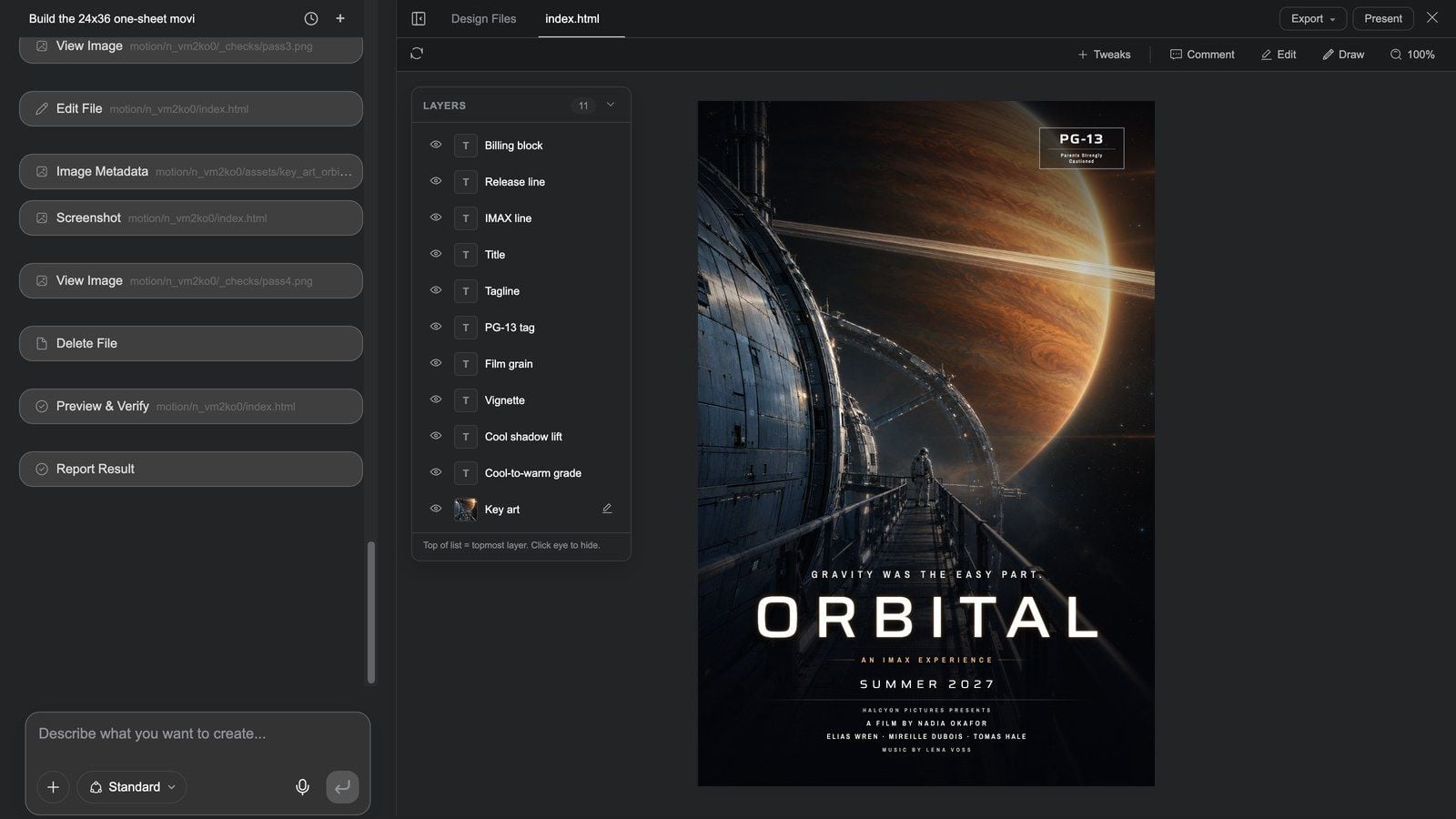
Layers panel: every poster layer (Billing block, Title, Tagline, Key art…), each with an eye for Hide layer / Show layer; image layers offer Regenerate image.
-
Changes are written straight into the page; there is no Save button. For a different overall style, ask in the chat.
Export the layers and finish in the layer editor
-
Back on the board, select the poster node and press Export layers (the card shows "Exporting layers…").
-
When it finishes — "Layers exported to a new node" — a layer document named " layers" sits next to the poster, one layer per poster layer (up to 128). Layers that cannot be rasterised (SVG-filter film grain, for example) are skipped with "N layers skipped: …".
-
Press its Edit layers for the Photoshop-grade layer editor: order, opacity, blend modes, retouching, cropping, type — see Board & Image Tools.
-
Export to canvas to bring the result back as a new image, or Download PNG / PSD.
This chain — page → Export layers → layer editor → back to the board — is the most overlooked and most useful one in Media Studio: an AI-generated layout can be edited like a design file instead of regenerated.
Motion pages: the board's After Effects
A Motion node is not "a little animation". It is a composition rendered frame-accurately: the Motion Studio agent writes it in HTML, and Render turns it into video frame by frame. On the board it is the post-production pass a generated clip cannot hold — whenever a frame has to be exact, this is where it goes:
-
Copy, numbers, logos and brand type over live or generated footage;
-
Title cards, titles, lower thirds, end cards;
-
Explainers and data stories: bars grow from the axis, lines draw along their path, numbers count to their value;
-
Promo and product pieces, launch films, product updates, HUD demos, trailers: whole pieces made of graphics, type and interface motion;
-
Word-synced captions from a narration track (highlight, karaoke pills, full-screen slam, neon, gradient fill — or a plain subtitle bar and a corporate lower third);
-
Masks and blend modes, and WebGL shader transitions between scenes (crossfade, wipes, ripple, shutter, glitch, blur-swap, flash…);
-
Three.js 3D: models, particles, lights and camera moves — for a 3D shot that must be controlled to the frame rather than guessed by a video model;
-
Lottie animations, multi-scene pieces (one sub-composition per scene) and parameterised templates (title, colours and length as variables).
How material gets in: connect the board's video / image / audio nodes to the motion node. A video becomes the full-frame footage underneath (it can carry a slow push or similar move), images become layers, audio becomes the narration or music bed — and the piece is paced to the voice: with an audio node connected, the clip's length and the moment each line appears follow the sound.
A cut of the nine HTML motion pieces from Get inspired on the home page (5 seconds each): a HUD over drone footage, a launch film whose product UI is drawn in motion, icons morphing into a logo, a product update with its numbers on screen, a data report over footage, charts that draw themselves in a knowledge video, a 1:1 marketplace video, a pixel-game demo and a VHS-styled trailer — every one rendered from a Motion node.
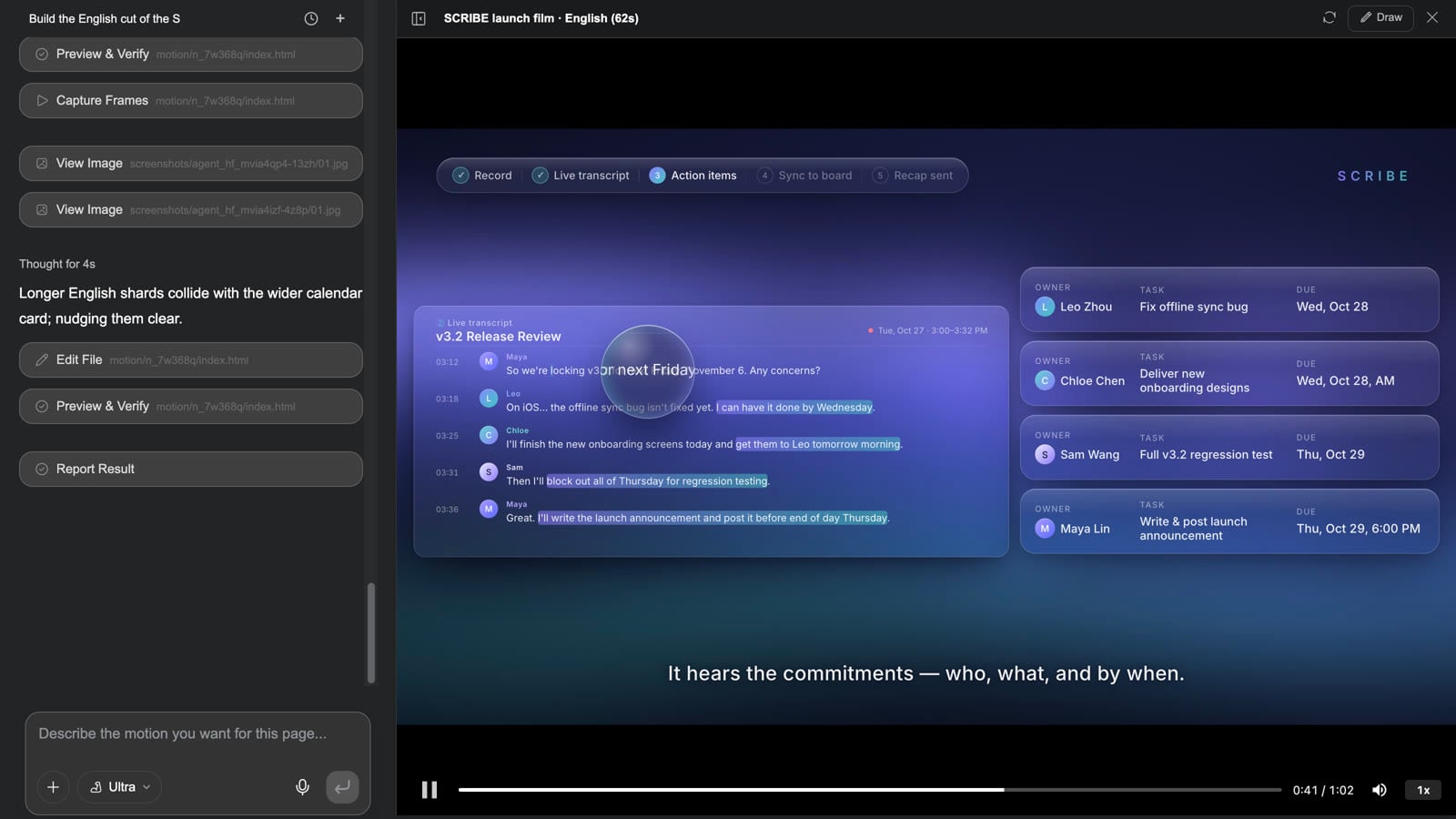
When to use Motion, and when not to
| You want | Use |
|---|---|
| Exact text, numbers, logos or UI; title cards, lower thirds, captions | Motion |
| An explainer, data report, product update, launch film, HUD, trailer, marketplace video | Motion (the whole piece) |
| A clip you already generated, plus titles / brand type / word-synced captions / data overlays | Motion: connect that video node, render a new video node; the original clip stays untouched |
| Human performance, natural scenes, lens character, light | Video generation; then a Motion pass when the text must be exact |
| Just joining clips, a subtitle bar, music, export | The video composer is faster |
| A still layout you can keep editing | Poster |
Getting started
Three routes to the same place:
-
Tell the agent (the usual way): describe the piece, say "as an HTML motion page", and connect or @-mention the product shots, footage, logo and narration. The agent writes the script / spec into a text node first, then creates the motion node and hands it to the Studio; the render is the video node next to the motion node, and the composer mixes SFX or adds an opener when you want a master — the nine home-page examples all share this shape: spec text → motion node → rendered video → composer.
-
Place the node yourself: Add node → HTML → Open studio → Motion, then write the brief in the Studio's chat (length, scenes, what text each scene shows, brand colours, SFX / narration).
-
Start from an example: any HTML motion card under Get inspired on the home page → Copy & continue, then swap in your product name, numbers and colours (each example carries a one-line continuation prompt; see recipe 16).
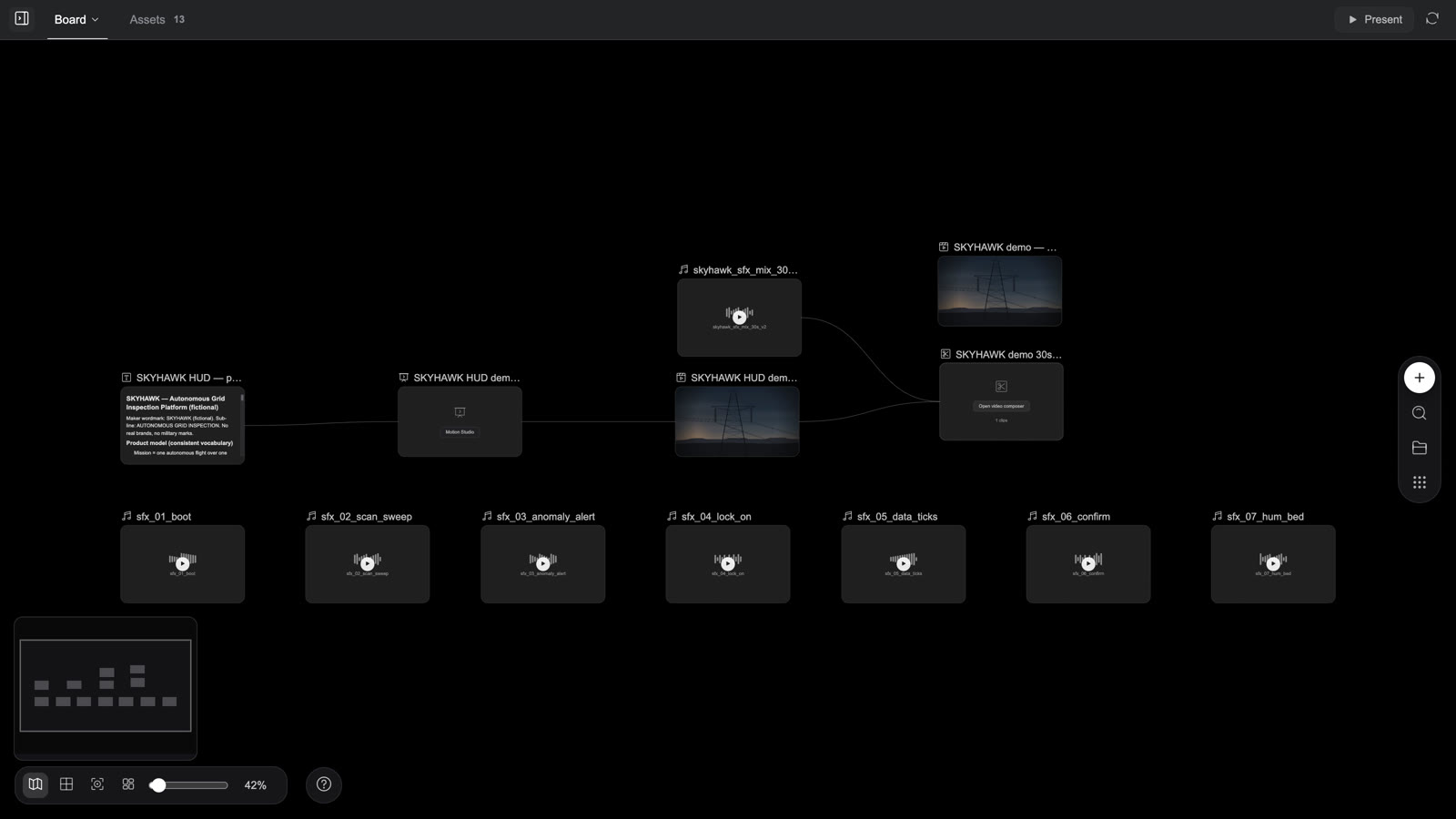
How Motion Studio works
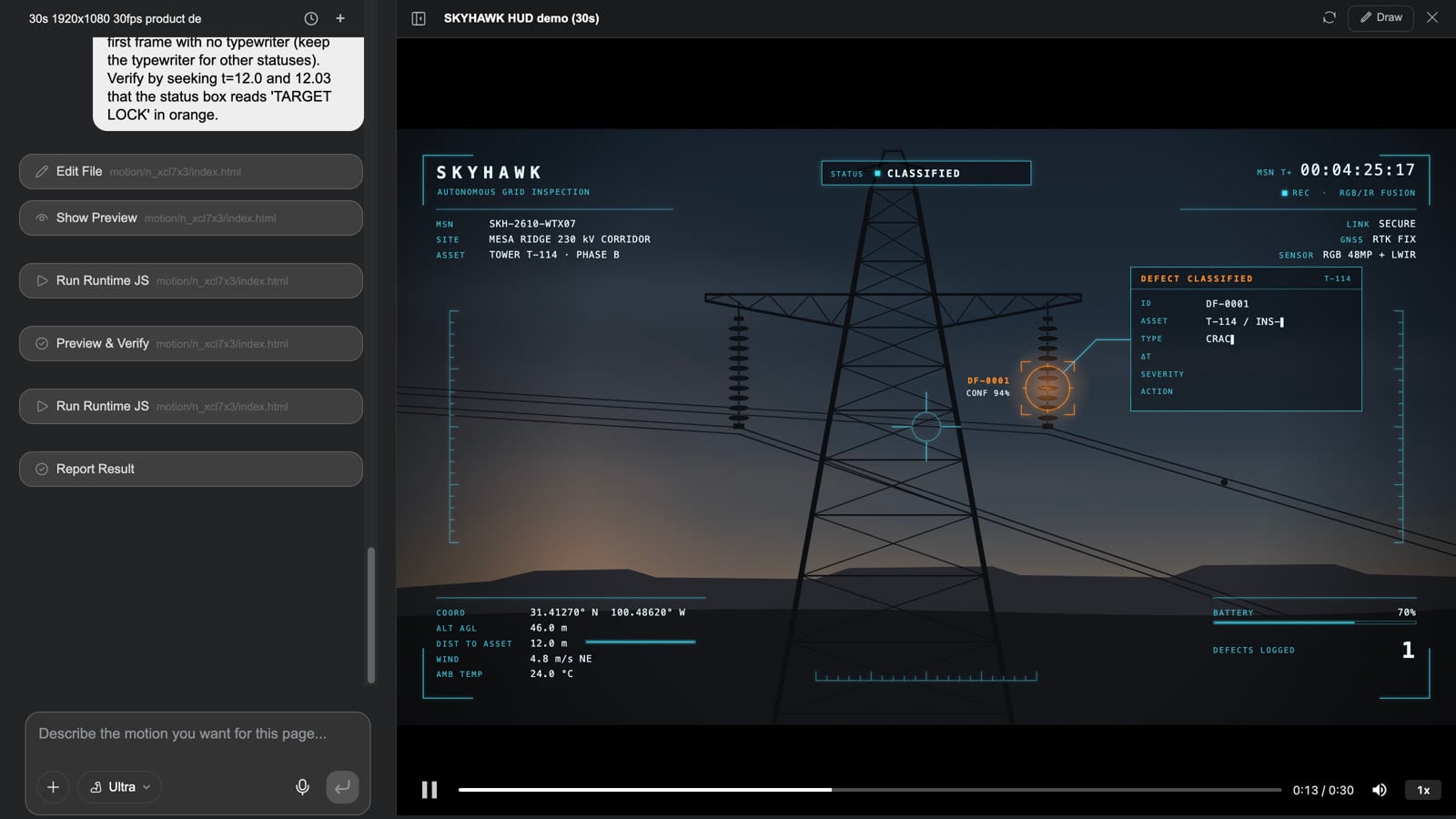
Motion Studio is driven by conversation. There is no keyframe timeline to drag — the agent arranges the footage, text, graphics and transitions on a timeline from your description; you watch the preview (the progress bar scrubs to any moment) and change things with a sentence.
Clip: changing a HUD over drone footage — open Motion Studio → play to the target lock at 12 s → ask for "an amber reticle and the confidence readout in the lower-left" → Reload preview after the agent is done and play again → Close → Render → the video node on the board updates in place
-
Select a motion node and press Motion Studio (or the button on the card). The conversation is on the left (the composer reads "Describe the motion you want for this page..."); the player is on the right with Play, a scrubbable progress bar, Mute and Playback speed at the bottom.
-
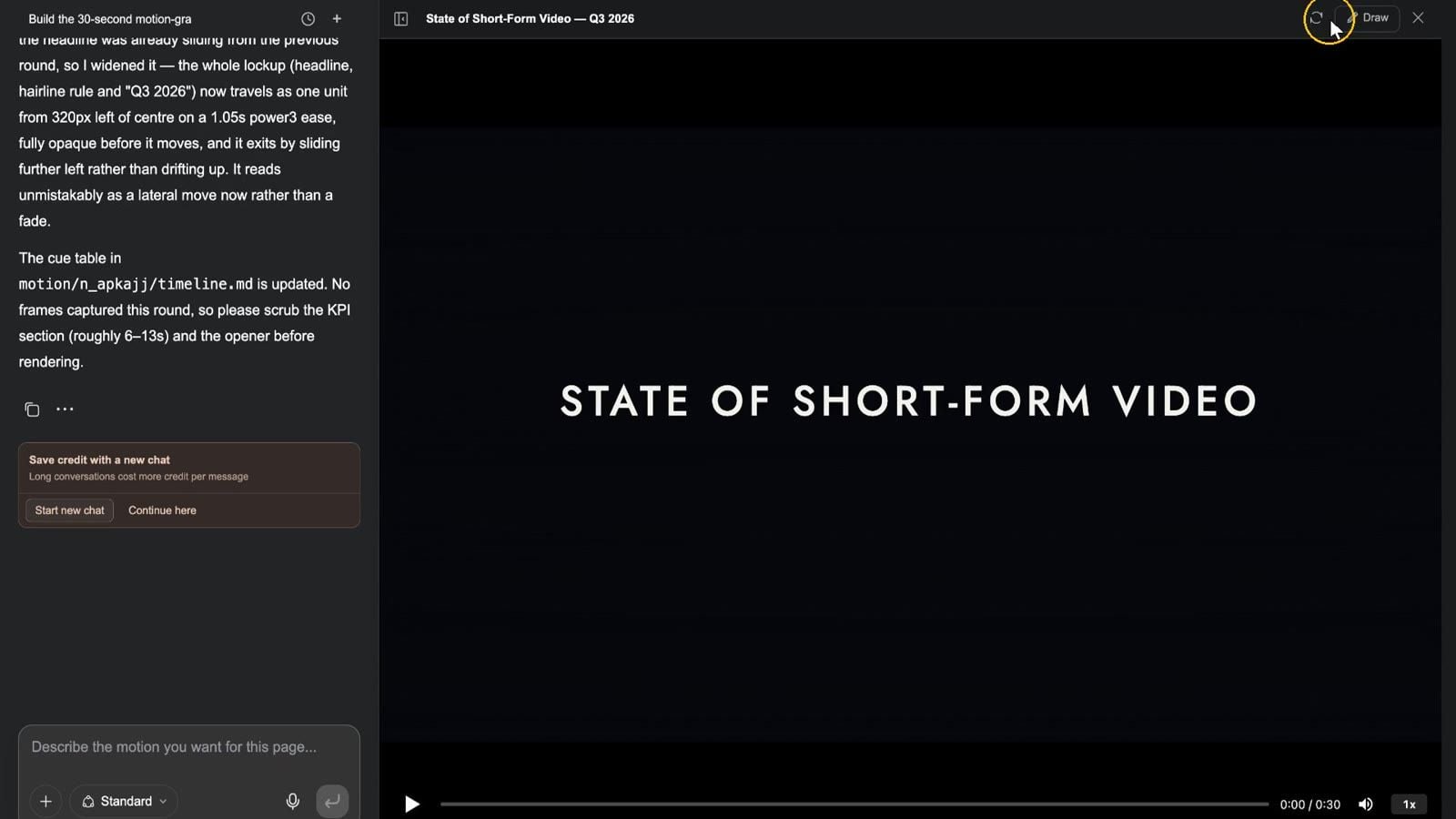
Scrub to the moment you want changed and describe the change — "slide the headline in from the left instead of fading; count the three big numbers up over two seconds each; make the lock reticle amber; hold the final lockup a second longer". The agent summarises which cue points it changed.
-
Press Reload preview and play it again. The top bar also has Draw (circle the spot and send it to the agent) and Close.
-
Close the Studio, select the node and press Render: the card shows "Rendering…", then "Motion rendered", and a video node with the same name appears next to it (or is updated). Rendering again updates that video node in place — renders do not pile up.
-
That video node can go straight into the video composer for the cut, the mix or an opener.
Worth knowing: connect an audio node to the motion node and the render treats it as narration, matching its length; two renders run at a time, each up to about 20 minutes; a motion page holds up to 60 element nodes. The page's own SFX, music and narration go into the render; to layer more sound, put the rendered video and the audio nodes into the composer together. For heavy compositions (3D, shader transitions, long multi-scene pieces) set the Studio's model tier to Ultra or Mega. When Slides / Design pages become a narrated video, every page is one of these motion nodes — open that page's Motion Studio to change it, then re-render just that page.
Motion pages in 30 seconds:
Interactive films
An interactive film is a graph of 5–15-second segments: viewers choose at each decision point, the story branches, and it ends in one of several endings.
Clip: select the film node → Fullscreen opens the player → cover → New game → the first segment → four choices appear at the decision point → pick one → the story branches → Story tree shows the flowchart → Menu opens the pause card → Resume
Making one
-
Script, segments and branches all live in the project: story.json holds the opening, each segment's video, subtitles (.vtt), 1–6 choices and what comes next, plus chapters, characters, achievements and the UI strings.
-
The easiest route is the Interactive Film Game skill ("Turn a story into a branching interactive film: viewers choose at decision points; preview on the canvas, export to Steam and mobile."): from one story the agent writes the story graph, lists the segments still needed, generates them, and wires them into the player. On the board you see a video node per branch and a "Story tree" text node.
-
Use Interactive Studio to adjust the cover, the choice copy and the theme through the chat.
Inside the player
-
Cover: title and tagline; Play opens the title menu: Continue / New game / Chapters / Load / Endings (n/4 unlocked) / Achievements / Characters / Settings / Credits.
-
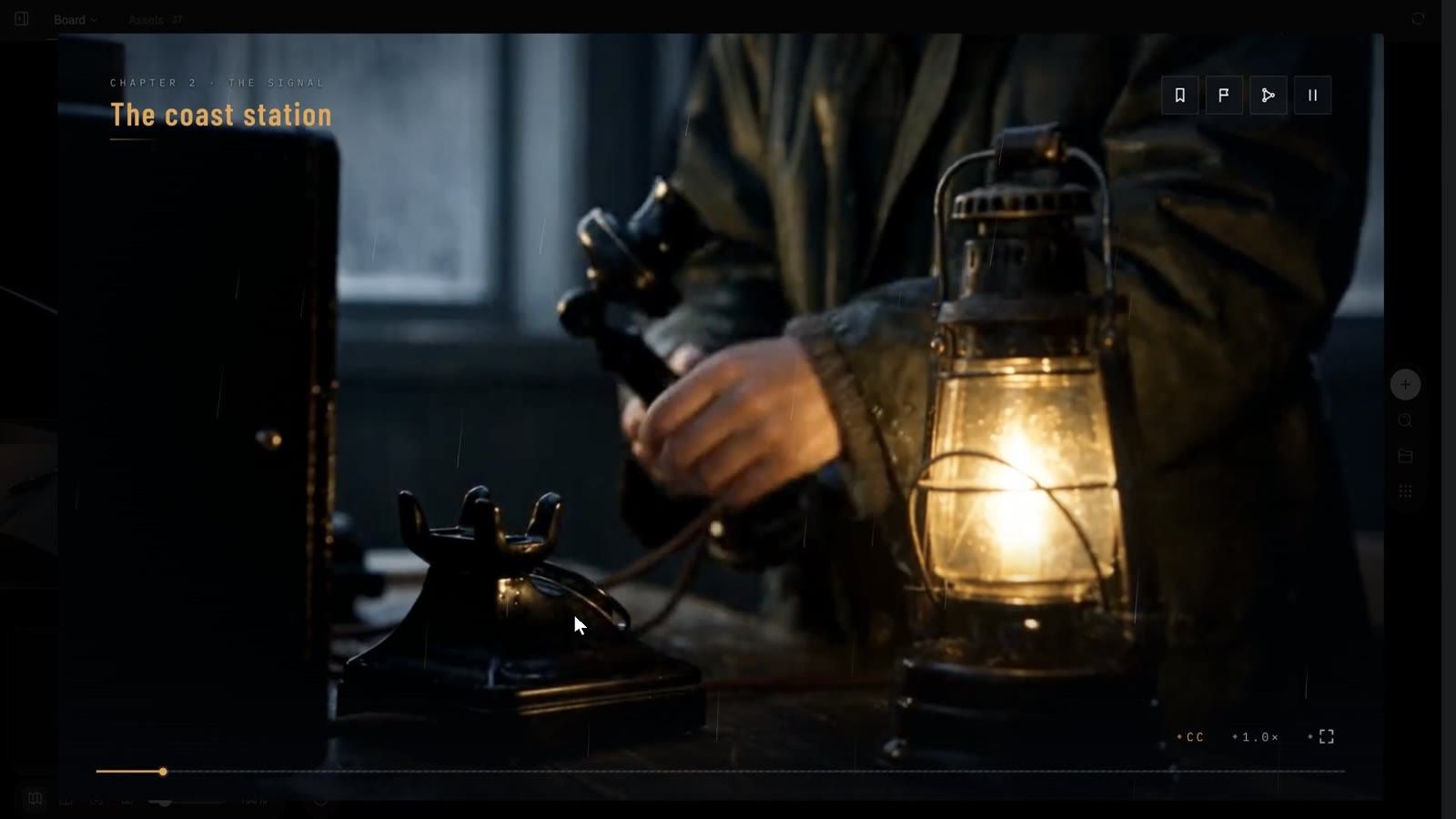
While playing: the chapter name top left; four badges top right — Chapters / Endings / Story tree / Menu; bottom right CC (subtitles), 1.0× (speed), Fullscreen. A first watch cannot be skipped ("No skipping on a first watch"); segments you have seen get ⏭ Skip seen.
-
Decision points: the choice cards appear a few seconds before a segment ends (optionally with a countdown — Timed decision; on timeout the default choice is taken: "Silence is also a choice").
-
Story tree: the flowchart of the whole film with visited nodes lit, plus Fit all / Locate current / Rewind here.
-
Menu (pause card): Resume / Replay scene / Chapters / Save / Load / Settings / Back to title; three save slots plus autosave.
-
Settings: Volume, Sound effects, Playback speed, Subtitles, Subtitle style (Outline / Bar), Speaker names, Subtitle size, Seen segments, Download all, Clear downloads and saves, Fullscreen.
Packaging and publishing
-
Select the node and press Export build: the popover shows "Preparing the build…", "Uploading media n/total", "Packaging the build…".
-
When it is done the button becomes Download build, and the popover says "Download the zip and hand it to GenCode, the desktop app. It will help you package and publish it for the web, desktop (Steam) and mobile." (GenCode links to the download page.)
-
The zip contains app/ (the web build: index.html, runtime, story.json, manifest), desktop/ (an Electron project with Steam depot scripts), mobile/ (a Capacitor project for iOS and Android) and a README. Publishing itself happens in GenCode — generating content and hosting it are deliberately separate.
The board exports a streamed build (media is fetched from the cloud), so the project must be shared publicly first; otherwise you see "the project is not shared publicly: streamed builds cannot fetch media until it is".
The official example The Lighthouse Signal — interactive film is a complete four-ending project; its read-only board shows every branch segment and the Story tree.
Interactive films in 30 seconds:
Story, assets and collaboration
Story bibles: turning "the setting" into a reusable asset
The painful part of a series is not the picture, it is consistency: the lead has a different face in episode 3, the prop on the poster is not the one in episode 5. A Story bible exists for exactly this. It fixes the world, the cast, wardrobe, props, voices and the camera grammar as canon with reference images (CANON); any project can attach it, and the agent copies the canon into the project before it shoots.
When you are invited to make one
When three things are true at once, the agent puts up a card in the first round instead of starting work:
- the content still has to be invented — a film or a series;
- it runs past about 3 minutes, its cast recurs across deliverables, or its setting is undecided (a brief too thin to script from, or one that plainly wants talking through first);
- the project is empty — nothing on the board or in the library, no bible attached.
The card reads "This brief has a setting to settle first. You can work it out in a Story Bible — a guided, visual pass over the world, cast and look, or a product's canon and campaign concept, that later work reuses — or keep going right here." with two buttons:
- Settle the setting in a Story Bible opens the New story bible window (Production brief already filled in, Setting notes pointing at the brief you just wrote, and Attach for reference files — up to 50, 50 MB each). Press Create → and the bible opens as its own project.
- Continue here skips the bible; the agent starts in the current project.
Clip: send a series brief → the agent answers with the Story bible invitation → Settle the setting in a Story Bible → the New story bible window → Create
You can also start one yourself: the Story bibles button in the composer → Create story bible; or select several images on the board → Add to bible → Add to story bible.
What happens in the bible project
A bible project's tabs are Story Bible / Screenplay / Board / Assets / Questions. The agent works in rounds and stops for your decision after each:
- Divergence round: it puts three treatment directions on the board — a sketch each plus one frame from the real film it borrows from — and asks you in the Questions tab: which direction, the mystery engine, the tone, the aspect ratio, the era, whether there is a supporting cast. Every question has a (recommended) option, an I'll decide and a + Other; press Continue when you are done.
- Proposal round: the story spine, cast anchors, sets, props and the camera / editing / sound / language / on-screen-text rules are written down as text canon; cards appear in the Story Bible tab (each Needs review). At the same time Questions asks you to confirm the image plan (for example "3 world plates + 3×3 angle grids, 2 identity sheets, 2 costume sheets, 2 prop sheets… about 12 images and 2 audio clips, 20–30 minutes"): Approve as written, drop a batch, or write Changes needed.
- Image round: the reference images are generated in batches — world plates with multi-angle grids, character identity sheets, costume and prop sheets — with a check-in after each batch; finally the characters' voice samples and a cover.
Clip: answering the divergence round in the Questions tab (direction / mystery engine / tone / aspect / era / supporting cast) → Continue
Paper decisions are free; images cost credits. The agent deliberately asks about direction, tone and era before it generates anything — two minutes in Questions is far cheaper than throwing away twelve images.
The Story Bible tab: how to review
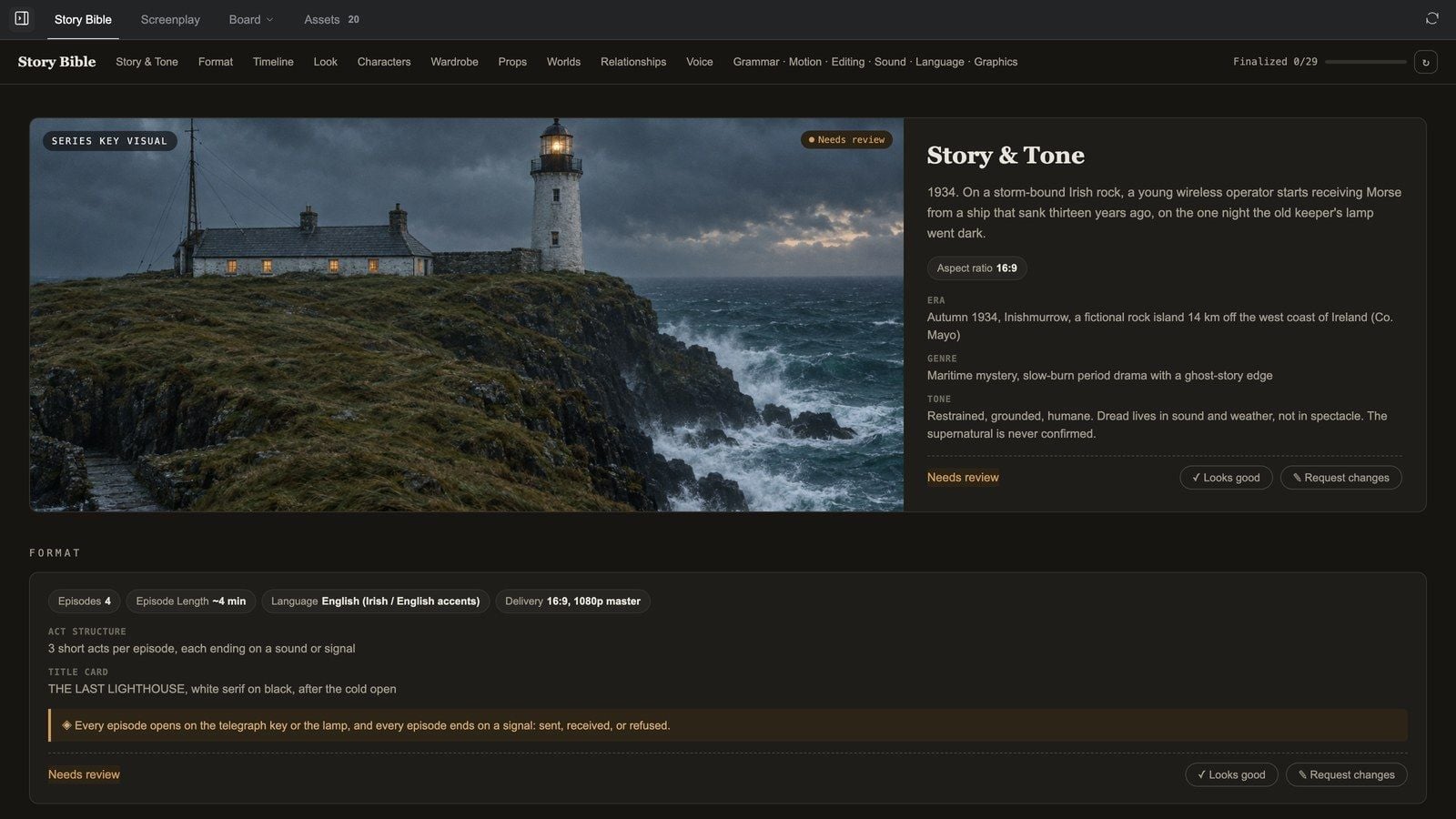
At the top: the title, a section nav and a Finalized n/m progress bar. Sections appear as they fill: Story & Tone (the series key visual), Format, Timeline, Look (with a Color script), Characters / Wardrobe / Makeup & Hair / Props / Worlds (entity cards), Relationships, Voice, and the rule cards Motion & Camera / Editing / Sound / Language / Graphics.
Text cards list ✓ Allowed and ✕ Forbidden columns with a status at the top right (Needs review / Approved / Changes requested) and two buttons:
- ✓ Looks good approves the rule.
- ✎ Request changes opens a box — "What should change? Be specific — this drives a regeneration." — Send it to the agent (which rewrites or regenerates accordingly) or Cancel.
Entity cards (characters, wardrobe, props, worlds) carry a CANON badge; hovering shows ✎ Mark up and ⤢ View. The + next to the thumbnails (Add auxiliary reference) offers:
- ⚭ Derive from CANON — new pose / outfit / expression: the CANON sheet is passed as image input, so identity holds when you change the pose, the outfit or the expression;
- ✦ Generate from a description: a new image from text, with the entity's anchors and NEVER lines riding along in the prompt;
- ⇪ Upload an image: your own picture becomes an auxiliary reference under this CANON.
Marking up an image: ⤢ View opens it large; ✎ Mark up lets you draw and drop sticky notes ("gloves in dark brown"); when you have enough, ⟳ Regenerate with n notes regenerates in one go, and ✓ Approve this image signs it off.
Clip: reviewing cards in the Story Bible tab — Looks good on a rule, Request changes with a note, View on a character card, Mark up with a sticky note
Attaching it to a project
When the bible is done, go to any media project:
- Press the Story bibles button in the composer ("Story bibles — attach, create, manage").
- Pick it in Choose a story bible (search, filter by All / Active / Story Bibles / Org; each row offers Open / Rename / Delete / Set status). No story bible detaches.
- From then on, before every generation in that project the agent copies the canon's reference images and voice clips into the project library and shoots from them — an attached story bible is law.
Clip: in a new project, press Story bibles → Choose a story bible → pick The Last Lighthouse → the bible is attached
Story bibles in 30 seconds:
When is a bible worth it? Whenever the same character or the same product has to appear in more than three shots. It saves not one generation but the rework of a whole piece.
Characters and voices
- The Characters source in the Assets panel manages characters you can pull into any project; the Bible source browses a bible's canon images directly.
- The bible's Voice section records every character's voice (TTS model, Voice ID, a voice sample), reused for narration and Dub.
- For a full character package, attach a skill: Casting Director (a consistent face, full-body looks, an expression sheet, turnarounds) or Actor Emotion Performer (one portrait → a set of 5-second emotional performance clips).
Screenplay
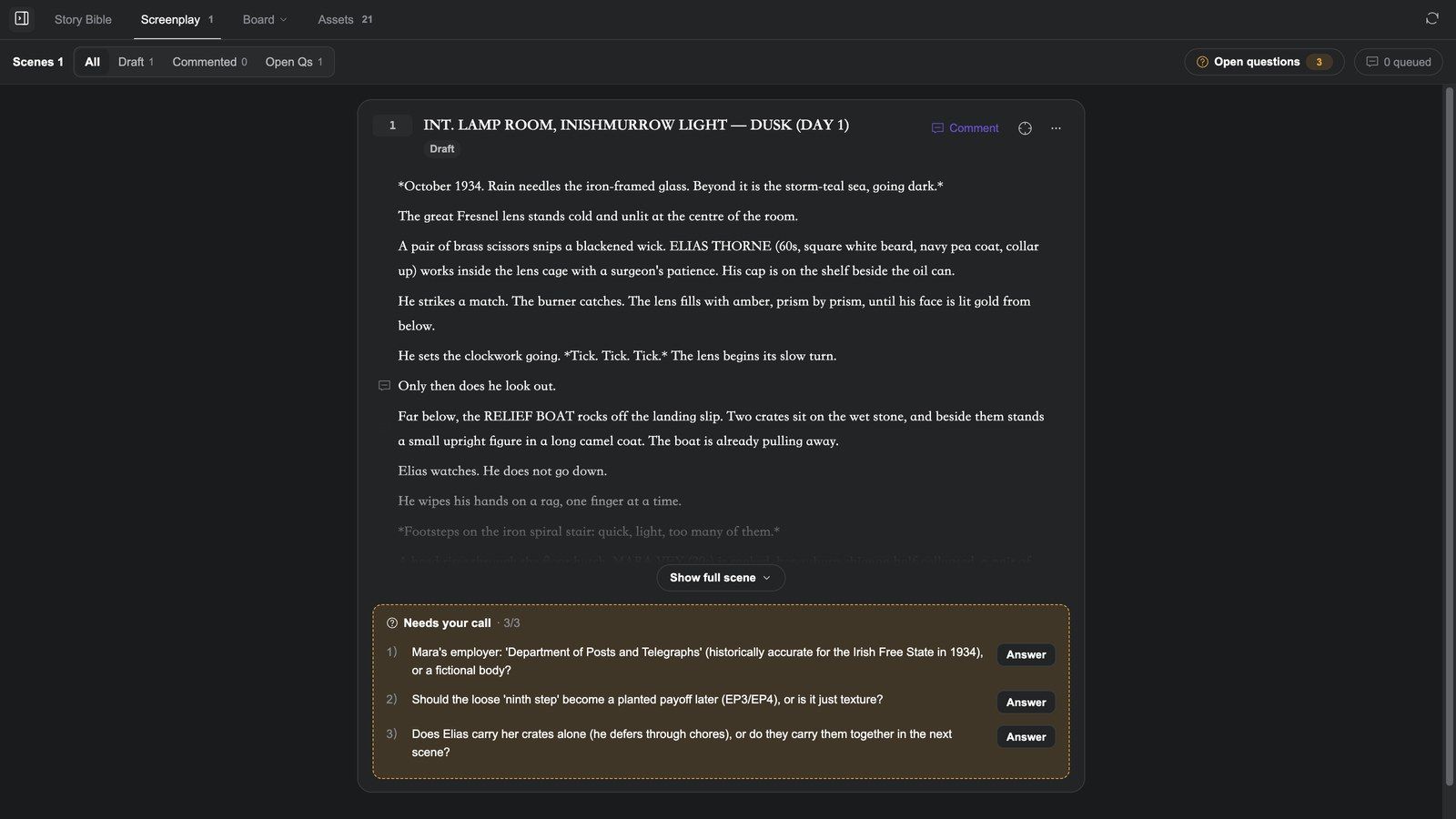
Bible projects also have a Screenplay tab, which manages the script by scene: every scene is a text node on the board.
- The empty state offers three starts: 01 Write scene 1 from the outline (from the scene outline in the Story Bible), 00 Start with the prologue (set the film's tone first) and Paste a scene I wrote (the agent continues in your voice). The first two send straight away; the third only fills the composer.
- Each scene card has Mark as final, Comment, Copy text, Show full scene / Collapse, See changes; Open on board jumps to the scene's node.
- Filter by All / Draft / Commented / Open Qs; Outline searches by scene number or place.
- The Open questions drawer collects every "needs your call" item the agent left in the scenes, Cross-scene or Per scene; answer, Queue, and they go to the agent with the other comments.
Clip: the empty Screenplay tab → Write scene 1 from the outline → the agent writes scene 1 as a text node on the board → expand the scene card → Open on board jumps to the node → back in Screenplay, queue a comment → Mark as final
How it fits: script first → storyboard second (the image tools' Grid templates: Story beats 4-grid, 25-cell storyboard) → video shot by shot. That order is the cheapest path through Media Studio.
Sharing and collaboration
Press Share at the top right:
| Option | What the link shows |
|---|---|
| Just a page | One page only: the Board, the Player, or a composed Video (watch-only) |
| The whole project (default) | The conversation, the board and all assets |
Then Copy link. General Access below decides who can open it: Anyone with the link / Restricted / Anyone in your organization. A share is for watching; to have someone work with you, use a production (below).
Present plays the finished cut full screen and needs a composer with clips (see the video article).
Assets and projects
- The Assets tab groups by Image / Video / Audio / 3D / Text / Other across six sources (Library / Web images / Characters / Styles / Music / Bible), with search, upload, Pin-colour filtering and multi-select Add to board / Download / Delete. Details in Board & Image Tools.
- Projects lists by recent activity; cards offer Rename / Set cover / Delete, and Set cover picks one of the project's assets or Reset to automatic. Details in the overview.
- Every Media Studio project also appears in Genspark's project history, next to Super Agent and Design work.
Collaboration: productions
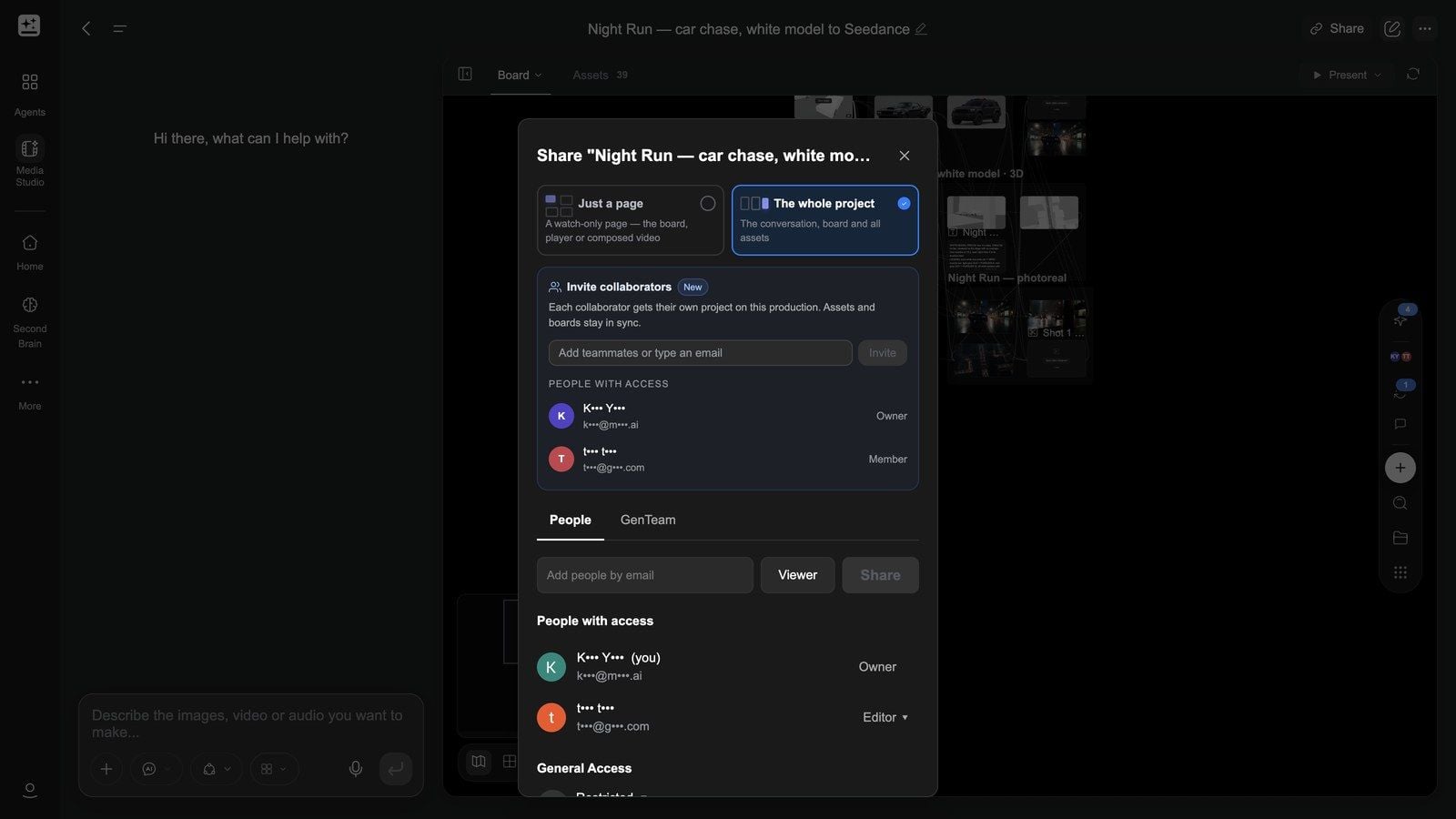
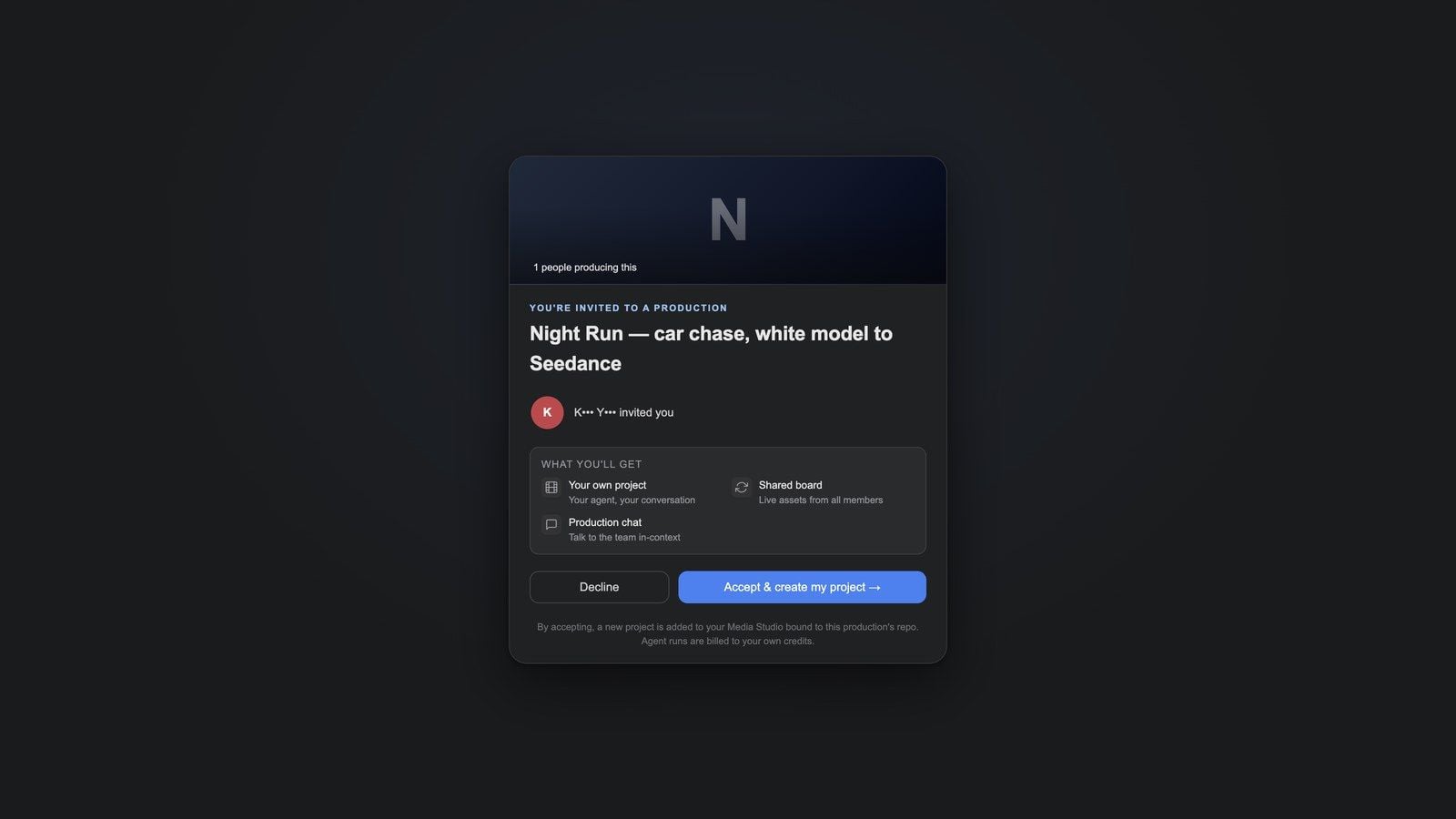
To make a piece with several people, enter their emails under Invite collaborators in the Share dialog and press Invite. "Each collaborator gets their own project on this production. Assets and boards stay in sync."
An invitee opens the link to You're invited to a production and, after Accept & create my project →, gets:
- Your own project — their own conversation and their own agent;
- Shared board — the board is shared, with live assets from every member;
- Production chat — talk to the team in context.
The invitation page states it plainly: "Agent runs are billed to your own credits." Each member's agent runs on their own credits — that is what makes collaboration work. People with access shows Owner / Member and invitations still Awaiting response.
Clip (two accounts, cut together): the owner types an email under Share → Invite → Pending invites; the invitee opens the emailed link → "You're invited to a production" → Accept & create my project → lands in their own new project with the shared board already populated → the owner reopens Share and People with access now lists a Member
Hand-offs to other products
- From Genspark Design: Design's file browser offers Edit in Media Studio, which packs the design's assets and imports them as ordinary nodes.
- To editors and design tools: the video composer's Export → Export Premiere project / Export CapCut draft; the layer editor's Download PSD.
- Publishing interactive films and pages: an HTML node's Export build, then GenCode (the desktop client) publishes to the web, desktop (Steam) and mobile.
Recipes
What are recipes?
Every recipe has the same shape: what it is for → what to prepare → the steps → a prompt you can copy → what you get → where to see one that is finished. Replace the bracketed parts of a prompt with your own. The examples come from Get inspired on the home page; each opens as a read-only board where View conversation shows the original chat and Copy & continue copies the project into your workspace as a starting point.
One cost-saving order runs through almost every recipe: answer the agent's first questions → lock the references (product, cast, style connected) → stills or a storyboard first → video second → the composer last.
Product ad / TVC (15–60 s)
For: one product shot or a product page → a finished ad with a mood and an ending. Prepare: a clean product shot, the benefit in one line, length and aspect. Steps:
- Start here → Promotional ad on the home page, or attach the Product Ad Director / AIGC TVC Director skill; upload the product shot.
- Answer the first round (audience, platform, length, tone). The agent proposes a creative direction and a storyboard (a 25-cell storyboard or beat grid) before it shoots.
- The product shot is connected as a reference to every shot node — that is what keeps the product from drifting. Generate shot by shot; fix a shot with Reshoot clips to keep its blocking.
- In the Video composer, order the shots and add subtitles; pick music from the Music library or have the agent write it; use Dub for a voice-over.
- Export → Export to canvas for the Final cut, then Download.
Make a 30-second summer spot for this Crocs clog from one line: "Thirteen holes. One summer." Product and a kid as co-leads, backyard sprinkler and porch at golden hour, no dialogue, end on the product and the line.
You get: a 30-second mp4, an editable composer timeline and every single shot. Examples: Thirteen Holes — Crocs Classic Clog 30s Spot · Her Sunday — Vacuum Cleaner TVC · The Runner — Steam Iron Cinematic Spot Related: Video tools and the composer
Brand film (60 s and up, with lines)
For: cookware, cars, home brands — films that sell a way of life, often with foreign-language dialogue and subtitles. Prepare: the brand's tone, product shots, the target language, a reference film (optional). Steps:
- Attach Brand Commercial Director or Film Production; describe the spine (four acts / three scenes), the language and the subtitle requirement.
- Past about 3 minutes, or with a recurring cast, accept the agent's Story bible invitation and lock the cast and sets as canon first.
- Keyframes per scene → video per shot; lines through Dub (verbatim lines + music and effects), which returns Dialogue / Sound effects / Music lanes.
- Add target-language subtitles in the composer (Subtitles → Apply to all subtitles) and export.
A 60-second kitchen film in French with English subtitles for a cast-iron Dutch oven: four short scenes of one family across one winter, the pot always in frame, warm tungsten light, a gentle piano score, end on the brand line "Pas encore."
You get: the 60-second film, subtitles, split audio lanes, Premiere / CapCut projects. Example: Pas encore. — Le Creuset Dutch Oven 60s Film Related: Dub · Story bibles
Product showcase: listing images and a short film
For: hero, macro, lifestyle and spec images for a listing or an A+ page, plus a 30-second showcase that works with the sound off. Prepare: 2–3 product shots (front / side / detail) and the key specs. Steps:
- The Product showcase quick skill; upload the shots.
- Have the agent make one hero first, approve it, then "fan out from the hero" (lifestyle, macro, infographic, banner) — everything connected to the hero so the product stays identical.
- Change angle (15 camera presets) for new views, Light studio for new lighting, Cutout to drop the background.
- For the film: hero → Video, with "the product is the hero, on-screen callouts, readable with the sound off" in the prompt.
From this hero shot of the K1 keyboard, make a marketplace set: a macro of the keycaps, a desk lifestyle scene, a spec infographic (switch type, battery, connectivity) and an A+ banner. Same product, same colour, 1:1 and 16:9.
You get: a consistent image set and, optionally, a 30-second showcase. Examples: KOJI K1 — Keyboard Launch Listing · Lumen Drop — Skincare E-commerce Suite · Auris — Headphone Launch Campaign Related: Image tools
Short film (30 s – 3 min)
For: a small story with a setup, a turn and an ending — brand stories, seasonal films, student work. Prepare: the story in one line, a style reference (a director or a film title works), the characters. Steps:
- Attach Short Film or Film Production; state length, style and where the ending lands.
- Lock the cast first: have the agent make a Character design sheet / Face 3-view (Grid templates on an image), then Add to bible or connect it as a reference.
- Make a 25-cell storyboard and change order and framing there — the cheapest place to change your mind.
- Generate 5–10-second clips per shot; Smart extend to lengthen, Frame edit for details.
- Cut in the composer, Dub for narration and music, subtitles, export.
A 30-second Koreeda-style family film: one last breakfast before a son leaves home. Three shots in a small Japanese kitchen, morning light through paper screens, no dialogue, one line of on-screen text at the end. Lock the mother and son first, then storyboard, then shoot.
You get: the film, the character sheets, the storyboard and every shot. Examples: 最後の朝ごはん — The Last Breakfast · Palimpsest — One Wall, 40,000 Years Related: Grid templates · Screenplay
Recast a reference video: same moves and camera, your cast and place
For: borrowing the camera and performance of a video that worked, or putting your own characters into a fight or a dance. Prepare: the reference video (≤ 60 s), your character images, your location image. Steps:
- Start here → Genspark Magic (or upload the reference and press Depth motion capture on its node, 720P).
- With the depth video on the board, Shift-select it plus the character images plus the location → drag the selection's ⊕ → Video.
- Pick a model that takes a motion reference (Seedance 2.5, for instance), match the depth clip's length, and say who is who and where in the prompt.
- To keep the original performance and change only the picture, use the source clip's Reshoot clips instead.
Recast this fight with two characters and follow the depth video's choreography and camera frame for frame. Leo takes the attacker's role, Mina is the second fighter. Stage it in the dojo courtyard at golden hour.
You get: a new clip whose motion and camera match the reference. Related: Depth motion capture demo
Long content into clips (podcast / talk / interview → vertical shorts)
For: a 40-minute recording → five vertical clips of 30–60 seconds, each opening on its strongest line. Prepare: the recording. Steps:
- Start here → Auto clips; upload the file.
- Answer how many, how long, which platform, captions and title cards.
- The agent transcribes, selects, cuts and captions; each clip is a video node you can Trim or Crop.
- For a finer cut, connect a few clips into one Video composer.
Cut this 40-minute podcast into 5 vertical clips of 30–60 seconds. Open every clip on its strongest line, add burned-in captions, and put the guest's name on a small lower-third in the first 3 seconds.
You get: N captioned vertical mp4s.
Explainer / report video (docs, decks, links → narrated video)
For: onboarding, product walkthroughs, quarterly reviews; existing Slides / Design content that should become a video. Prepare: the doc / deck / link, the narrator persona, whether you want a presenter on screen. Steps:
- Start here → Knowledge explainer, or simply say "turn my Slides deck '…' into an 8-minute narrated video".
- From scratch, the agent checks the facts, writes the script, makes each section an HTML Motion page node and narrates it. From Slides / Design, every page becomes a motion page node after one round of questions (script, presenter, animation style).
- To change a page, open its Motion Studio, say what should change, and re-render only that page (Render).
- When all pages have rendered the cut is assembled; a presenter can appear between chapters or as a corner window. One assembly ≤ 20 minutes.
Turn this onboarding deck into a 60-second explainer for new hires that answers "how do I get my first week right?". Facts checked against the deck, calm narrator, on-screen captions, and a short title card between sections.
You get: the explainer and one re-renderable motion page per section. Related: Slides / Design to video · Motion Studio
Presenter / talking-head video
For: a person speaking to camera from a script: lessons, announcements, product pitches. Prepare: the script (verbatim), the presenter (generated or an uploaded portrait), the background. Steps:
- Make the presenter first: describe them → image; lock the face with Face 3-view.
- From that image ⊕ → Video; ask for "speaks straight to camera, lip-synced to the narration" and include the script — or generate the voice on an Audio node first and connect it to the video node.
- For another language or voice, Dub the result: verbatim lines plus "no music".
- Join several takes in the composer; Apply to all subtitles.
Generate a 20-second presenter video: the woman in this reference speaks straight to camera in an office, warm and professional, lip-synced to this script: "Welcome to the team. This week has three goals…". Add captions.
You get: the presenter video with a replaceable voice lane.
Music, music videos and scores
For: an original score for a cut, or a music video built from a song. Prepare: mood and tempo, or lyrics; for a music video, the visual style and the cast. Steps:
- Score: attach Music Single, or describe style, BPM, length and where it should build in Audio mode; ready-made tracks come from the Music library (Music / SFX / Songs — Preview, then Add).
- Music video: song first → the agent storyboards by lyric section → video per section → align hits in the composer (Split, Snap).
- New music under existing footage: Audio separation → Keep vocals only, then drag the new track onto an audio lane.
Write a 30-second score for this brand film: bright, building, a soft percussive pulse that lands on the three cuts at 0:08, 0:17 and 0:26. Then cut the film to it.
You get: an audio node and a cut that lands on the beats. Example: Hotel Meridian 'Glass Season' — Vinyl Release (the sleeve and label artwork)
Brand visual kit
For: a complete visual system for a new brand, event, restaurant or hotel: logo, palette, packaging, storefront, menu, posters, social templates. Prepare: the name, a one-line positioning, three keywords or three hex colours. Steps:
- Attach Visual Suite (or just describe it); Pin the brand colours at the front of the board.
- Lock the logo and the style guide first; connect them as references to everything that follows (packaging, storefront, menu, poster).
- Edit text for copy changes; Separate layers → layer editor → Download PSD for editable design files.
- Social templates as HTML Poster pages; Export layers makes them editable in the layer editor.
Build a brand identity for "Ember & Oak", a neighbourhood coffee roaster: logo, a one-page style guide (type, colour, voice), a packaging trio (250 g bag, cup sleeve, sticker), a storefront mock-up and one launch poster. Keep everything on the same three brand hexes.
You get: a consistent set of brand images and editable PSDs. Examples: Ember & Oak — Coffee Brand Identity · Kumo Ramen — Restaurant Identity · The Quiet Harbor — Boutique Hotel Identity · Low Tide Festival — Event Identity System · Tin Lantern — Night-Market Food Truck · Harborlight Marathon — Race Kit · ABYSS — Museum Exhibition Identity · MAREE — Perfume Collection Launch · Bowden & Co. — Pet Supplement Line
Poster / key visual (still a design file afterwards)
For: a movie one-sheet, an event key visual, a cover — with editable type and separable layers. Prepare: a description of the key art or the key-art image itself, the title and the credits copy. Steps:
- Make the key art first (an image node); then Add node → HTML → Open studio → Poster.
- In Design Studio's chat, give the layout brief (title typeface, white space, the billing block); the key art is referenced as a layer; fine-tune with the Edit drawer and the Layers panel.
- Export layers → a layer document → Edit layers: tracking, grading, logos; Download PSD for a designer or Download PNG to use directly.
Build a 24×36 one-sheet for the film ORBITAL from this key art: title in a wide geometric sans with very wide tracking in the lower third, tagline "Gravity was the easy part." above it, a proper billing block and release line at the bottom, PG-13 tag, film grain and a cool-to-warm grade as separate layers.
You get: an editable HTML poster, a layer document, PSD / PNG. Example: ORBITAL — movie one-sheet Related: Posters · The layer editor
Character IP kits and picture books
For: a mascot or virtual character's full package (turnaround, expressions, poses, merchandise), or a picture book's cover and spreads. Prepare: the character in one line, plus a reference you like (optional). Steps:
- Lock the master character image first and Add to bible (or connect it as a reference) immediately.
- Use Grid templates: Character 3-view / Face 3-view / Character design sheet, then expression and pose sheets and merchandise applications — all connected to the master.
- For a book, generate spread by spread with the same character connected to the canon on every page; set the type with Edit text or a poster page.
- To animate: character → Video; for 3D merchandise: 3D World, or a Tripo model followed by Rig skeleton.
Create a character IP kit for Miso, a round sleepy cat mascot: lock the master character first, then a turnaround, an expression sheet, five poses, and three merch applications (sticker, tote, enamel pin). Same proportions and palette throughout.
You get: the character canon and a full set of sheets. Examples: Miso — Character IP Production Kit · The Umbrella Fox — Picture Book Related: Casting Director / Actor Emotion Performer
3D previs → the real shot (spatially complex scenes)
For: chases, multi-person blocking, moving through interiors, a product with a fixed relationship to its surroundings — lock cameras and movement on a white model before paying for renders. Prepare: the scene, what each camera is for, the final look. Steps:
- Start here → Stage a scene, or Add node → 3D Director Stage → Open stage.
- Say white model / previs: movement and camera only in the brief; the agent builds the white model and one camera per shot.
- Look through each camera with the picker and Play; ask for changes in the chat (you can @ a camera or a moment).
- Set active on the camera you want → Movement to board for the previs video; Frame to board for the first frame.
- Previs video ⊕ → Video, a motion-reference model such as Seedance 2.5, and a prompt that names each block by its position relative to the camera; several shots go into the composer.
Block out a 16-second night car chase on a white stage: a fleeing sedan, a pursuing police cruiser, a cross street and a tilted flatbed truck at the end. Four shots — bumper chase, inside of the corner, drone sweep, far-side landing — each with its own camera. White model only: movement and camera, no textures.
You get: the white-model previs, a finished shot per camera, a 16-second cut. Example: Night Run — car chase, 3D stage to Seedance Related: The 3D director stage
Floor plan → 3D model and bird's-eye views
For: real estate, interiors, exhibitions: a plan becomes a furnished 3D cutaway and multi-angle stills. Prepare: a photo or PDF screenshot of the plan. Steps:
- Upload the plan → an image node; have the agent make a photoreal top-down render first (a Nano Banana-class model).
- Connect the render to a 3D Director Stage with the brief "build it as a furnished 3D cutaway wall by wall, keeping the plan's proportions".
- Orbit in Director view, Frame to board for top-down and 45° bird's-eye stills; upload any external .glb under ASSETS.
From this floor-plan photo, first render a photoreal top-down view, then build it as a furnished 3D cutaway model on the stage wall by wall, keeping the plan's proportions. Export a top-down frame and a 45° bird's-eye frame.
You get: the top-down render, the 3D cutaway and stills. Example: Florida House — floor plan to 3D cutaway
Interactive films (branching shorts)
For: a short in which viewers choose at decision points and reach different endings; packaged for the web, desktop (Steam) and mobile. Prepare: the synopsis, 2–3 decision points, the number of endings, a UI theme preference. Steps:
- Attach the Interactive Film Game skill, or Add node → HTML → Open studio → Interactive film and pick a theme (Classical / Sci-fi / Fantasy / Modern).
- The agent writes the story graph (opening, branches, endings) and lists the segments needed; generate 5–15-second clips (lock the cast as canon first).
- In Interactive Studio, adjust the cover, the choice copy and the subtitles; Fullscreen on the node to play it, and walk the Story tree.
- Export build → Download build, then publish with GenCode.
Write a branching three-minute film "The Lighthouse Signal": a keeper hears a signal no one else can; two decision points, four endings, 5–15 second segments, Modern UI theme. Plan the segments I still need, then assemble.
You get: a playable interactive short and a publishable build zip. Example: The Lighthouse Signal — interactive film Related: Interactive films
HTML motion pieces: product updates, launch films, HUD demos, trailers, knowledge videos
For: a whole piece made of text, numbers, interface and graphic motion, where every frame must be exact — a SaaS product update, a launch film, a keynote opener, a product HUD demo, a game trailer, an explainer, a data report, a marketplace main-image video. This is the board's After Effects at work. Prepare: the script or the beats (what each scene shows and says), brand name / colours / logo, optional product shots or footage underneath, optional narration. Steps:
- Connect the material (product shots, logo, footage, references), then tell the agent: length, number of scenes, what each scene shows and says, whether you want narration / SFX / music — and say "as an HTML motion page".
- The agent writes the script / spec into a text node and asks you to confirm, then creates the motion node and hands it to Motion Studio; SFX and narration land as audio nodes.
- Open Motion Studio and play the preview; ask for changes in the chat ("count the numbers up more slowly", "lock at 12 seconds", "hold the ending a second longer"), Reload preview to confirm.
- Render on the node → a video node; to mix SFX / music, put it in the video composer with the audio nodes and Export to canvas for the master.
Make a 30-second product-update video for [my SaaS product] as an HTML motion page: four feature scenes with on-screen numbers, a mascot, and sound effects mixed into a master.
Make a 30-second product demo for [my inspection platform] as an HTML motion HUD over a drone shot: boot, scan sweep, anomaly alert, target lock with a confidence readout, and seven SFX cues mixed under a hum bed.
Make a 90-second explainer about [my topic] as an HTML motion page: lock a data table with sources first, then animate the figures scene by scene with a calm documentary voice-over and paper-and-tick sound effects, no music.
You get: the spec text node, the HTML motion node and the rendered video node (plus a composer master when you want one). Examples (the HTML motion cards under Get inspired on the home page; after Copy & continue, the quoted line is how to make it yours):
- Reconcile Cloud — 30 s SaaS product update: "Swap the four features for mine and change the brand colour; keep the scene timing and the SFX cues."
- SKYHAWK — drone-inspection HUD demo: "Change the target to a wind-turbine blade and the brand name; keep the lock moment at 12 seconds."
- FLASHPAY — keynote opener: "Replace the seven features with mine and the accent colours with my palette; keep the morph timing."
- SCRIBE — AI meeting assistant launch film (62 s, nine voice-over lines): "Swap the product name and the four workflow steps for mine; keep the scene timing, the voice-over pacing and the sound design."
- TAKE IT APART — how much water is in one latte? (96 s knowledge video): "Swap the topic and the data table for mine; keep the pacing, the ESTIMATE tags and the sources screen at the end."
- NEON RUSH 88 — launch trailer: "Replace the game name, the four track names and the record time with mine; keep the VHS framing and the beat timing."
- TINY FORGE — pixel game tutorial demo: "Change the hero and the quest items to my game's; keep the 12-frame step motion and the palette rule."
- AQUA GLOW — 1:1 marketplace main-image video: "Change the product name, the three tags and the price; keep the pour and the sound design."
- State of Short-Form Video — motion report over footage: "Replace the numbers with your own quarter's data and swap the background video for footage of your city." Related: Motion: the board's After Effects · Post pass over footage (recipe 17)
A post pass over footage: title cards, lower thirds, brand type and word-synced captions
For: footage you already have (generated, uploaded, or a composer export) that needs exact text and graphics on top — a title card, a name strap, brand type and logo, captions synced word by word to the narration, number / chart overlays, an end card. The original clip stays untouched. Prepare: the video node to work on; the copy (what appears at which second); logo / brand colours; optionally the narration audio node (for word-synced captions). Steps:
- Select the video node and tell the agent "build an HTML motion post layer over this clip", listing every overlay: time, content, position, style (type feel, brand colour, caption style). To place it by hand: Add node → HTML → Open studio → Motion, then connect the video node to the motion node.
- For word-synced captions connect the narration audio node too — the Studio transcribes it to word-level timestamps first, then builds the style you picked (plain subtitle bar, highlight, karaoke pills, full-screen slam, neon, gradient fill, corporate lower third).
- In Motion Studio, scrub to each overlay's moment and check it; change position, colour or timing with a sentence, Reload preview to confirm.
- Render → a new video node (the original clip is kept); put it back in the composer for an opener, an end card or music, or Download it.
Over this 20-second clip, build an HTML motion post layer: a title card "[Title]" sliding in at 0.5 s and out at 3 s, a lower third "[Name — Role]" from 6 s to 10 s in [brand colour], word-synced captions from the attached narration in a plain subtitle style, and the logo in the bottom-right corner for the last 3 seconds. Keep the footage untouched underneath.
You get: one HTML motion node and the rendered video node with the overlays; the original clip is kept. Related: Motion: the board's After Effects · The video composer · Dub: re-voice the whole clip
FAQ
General
Is Media Studio the old AI Video / AI Audio / AI Music?
Those tools have been folded into Media Studio — the same capabilities, rebuilt as one board with built-in production skills. The old pages still open and the projects you made there stay there; only projects created in Media Studio appear under Projects.
Do I have to pick a mode before typing?
No. General lets the agent decide the medium at each step. Pick a mode only when you already know the medium and want the composer focused on it.
Can I come back and keep editing a project?
Yes — open it from Projects: conversation, board and assets are restored. A project can hold several boards (the menu next to the board tab → New board) to keep versions apart.
Can I use my own product shots and videos?
Yes. Attach with the composer's +, drag files onto the board, or use Add node → Upload on the board's right-hand dock; uploads become nodes you can reference.
Why does the agent ask so many questions up front?
One clear round is cheaper than regenerating. Answer the few that matter and send; the rest default.
Why am I stopped when ordering many clips at once?
Large batches ask for confirmation on purpose — every clip costs credits. Smaller batches usually stay more consistent, too.
Does Media Studio talk to Genspark Design?
In one direction today: Design's file browser offers Edit in Media Studio, which packs the design's assets and imports them; once in, they are ordinary nodes.
Can I use what I make commercially?
You own what you create, subject to the model providers' terms and your plan. For brand work, check the license notes on the model card before generating in bulk.
Board and image tools
Can I move nodes around?
Yes. Position, size and grouping are free; moving a node never changes a result — only reference edges do. Tidy up canvas reorganises the board in one click.
Which generations does a reference edge affect?
Only generations you start on the target node. The source is never changed by being connected.
Do the tools overwrite the original?
No. Every tool produces a new node; the original stays on the board for comparison and rollback.
What is the difference between the layer editor and Image composer?
None — Image composer is the node, the layer editor is the workspace you get when you open it. Separate layers, a poster's Export layers and ⊕ → Image editor all produce Image composer nodes.
Can I put my own assets on the board?
Yes. Drop files onto the board, use Add node → Upload or the composer's +; uploads become nodes you can reference.
Video and dubbing
Can I edit the Dub result separately?
Yes. Dub delivers a video composer with Dialogue / Sound effects / Music on their own lanes; trim, mute or delete each, and each stem is also saved as a project asset.
Will Dub misread my lines?
Not if they are quoted verbatim. A brief that only paraphrases is refused (see the note above).
Can I finish the edit in professional software?
Yes: Export → Export Premiere project / Export CapCut draft downloads an editable project.
How long can one composition be?
A 20-minute main track and a 21-minute composition. Split longer pieces into several compositions and join or deliver them separately.
Can a real presenter appear in a Slides video?
Yes, in two forms: interstitial appearances between chapters, or a rounded corner window on content pages, lip-synced to that page's narration. The presenter can be generated or uploaded.
3D and HTML pages
How is the director stage different from generating video directly?
The stage gives you a white-model previs first: cameras, blocking and occlusion are visible before any credits go into rendering. For complex spatial scenes this is what prevents reshooting a whole sequence.
Can I use my own 3D models?
Yes. Inspector → ASSETS → Upload a file takes .glb (and gltf / obj / fbx, textures, HDR, audio; 100 MB per file), or Place one from Board library · 3D. Rig skeleton, however, works only on Tripo-generated models — the two are separate things.
Does Frame to board capture the view I am looking at?
No — it renders the Active camera. To capture the camera you are looking through, select it under CAMERAS and press Set active.
Can an HTML page be edited after it is made?
Yes, at several levels: the page itself in its Studio (chat, the Edit drawer, the Layers panel); for pixel-level work, Export layers turns it into a layer document for the layer editor.
Why does Motion Studio have no timeline?
It is conversation-driven: the agent arranges the motion from your description, you watch the preview and change it with a sentence; the player's progress bar scrubs to any moment before you comment. For frame-level control, put the timings in the brief ("the bars grow at second 3", "lock at 12 seconds") and the agent places them to the second — which is exactly what separates it from a video model: the frame is written, not guessed.
Can an interactive film be published?
Yes — Export build, then publish with GenCode to the web, desktop (Steam) and mobile.
Story bibles and sharing
What is the difference between a Story bible and the character library?
A Story bible is the complete setting of one production (world + cast + wardrobe + props + voices + camera grammar) and attaches to a project as a whole; the character library holds reusable character entries. Series work wants a bible; loose assets want the library.
Can I use one bible in several projects?
Yes. Attach it with the composer's Story bibles button in any project; its canon is copied in before shooting.
What does a bible cost?
The paper rounds (directions, proposal, Questions) cost only planning; the image round is billed per image, and the agent tells you in the confirmation form roughly how many images and how long before it starts.
Can I restrict a share link?
A share is for watching; General Access controls who can open it (link / restricted / organisation). For hands-on collaboration, use Invite collaborators.
Recipes
Do the prompts have to be in English?
No — the agent understands many languages. The examples are in English because the Get inspired pieces were briefed in English, which makes it easy to compare with their conversations.
Roughly what does a recipe cost?
Paper work (questions, storyboards, directions) comes out of the Standard tier's free quota, as do default-quality images; video / audio / 3D are billed per second and resolution, with the estimate shown on the configuration node before you send. Stills before video is the one rule every recipe shares.
Can I combine recipes in one project?
Yes, and it is common: make the brand kit, then the TVC from the same canon; make the 3D previs, then the shots. A project can hold several boards (New board) to keep them apart.
Troubleshooting
General
The send button is grayed out
The composer is empty, a mode panel has an unfinished field, or a generation is already running. Type a few words or attach a file.
A generation failed or came back blank
The node shows Generation failed and No charge; press Retry. If it keeps failing: shorten the prompt, attach a reference, or split the job (generate a still first, then animate it).
I cannot find an earlier project
Use Search projects under Projects, then check Recent in the left rail. Projects made in the old AI Video / AI Audio / AI Music pages are listed in those tools, not here.
"Media Studio is disabled for your organization"
Your workspace admin has turned the feature off. Ask them to enable Media Studio in the organization's feature settings — it is an admin switch, not a plan limit. The 3D director stage and the HTML Studios use the same switch.
Board and image tools
Double-clicking the board does not open the ⊕ menu
A node is probably selected; click empty canvas first, then double-click — or press Add node in the dock.
A tool button is greyed out
Most tools need an editable source: Separate layers needs a source image that is still in the project ("The source image for this layer stack is gone"); Enhance and Depth motion capture on video accept clips up to 60 seconds.
The brush does nothing in the layer editor
Check that the target layer is neither hidden nor locked ("The brush can't be used because the target layer is hidden / locked"), and that a pixel layer is selected.
An AI retouch in the editor fails
Not enough credits to run this edit (top up), Image is too large for this edit (reduce the image size first), The edit timed out, please try again (retry).
The result did not land on the node I expected
Generation follows the most recently selected node. Click the target node first, or click the generation card in the chat to fly to the result.
Video and dubbing
The composer is empty
It takes its footage from the connected video nodes (an empty main track says "Nothing here yet — connect video nodes, then open the composer"). Connect video nodes to the composer node, or use Add media.
Export keeps spinning or nothing happens
Rendering runs on the server and continues after you close the composer; the board shows "Final cut added to the canvas" when it is done. If you see "The render could not be submitted (no answer from the server) — try Export again", press it again; a project runs at most three renders at once.
Object replacement says the video is too long
Frame edit replace / remove works on clips up to 30 seconds ("This video is longer than 30s — object edits support videos up to 30s."). Trim to the segment first.
Dub says "Clip too long or too large to dub"
The limit is 180 s / 512 MB. Trim the part you want to voice, or dub in segments.
The dubbed track does not line up with the picture
Make sure the lines are verbatim and in picture order; for long pauses, use sentence breaks and punctuation in the brief, or generate first and nudge the lane's start in the composer.
3D and HTML pages
The stage or Motion Studio will not open
"The 3D director stage is not enabled for this account" / "Motion Studio is not enabled for this account" almost always means a workspace admin has turned Media Studio off (the same switch as the board), or you lack write permission on the project (a read-only share). Read-only projects also show "This stage has not been set up yet. Ask its owner to open it once."
The stage is blank / "The stage failed to load."
Press Reload; if that does not help, Ask the agent to fix it — the agent checks its own code.
The Movement to board video is black or very short
Do not switch tabs while it renders in the browser; check the Active camera and the timeline length (the total on the right of the player).
The exported layers do not match the poster
Export layers rasterises every exportable element; SVG filters and some blend effects cannot become separate layers, so those are skipped and the card says "N layers skipped".
Render does nothing / "already rendering"
One render per node at a time and two per project; wait for "Rendering…" to clear. A poster has no motion to render — it wants Export layers.
Story bibles and sharing
The consistency I set up did not hold
Check three things: is the bible attached to this project; did you connect the elements to reuse as references; was a different style or model specified for the generation (a model change can shift the look).
Every card says Needs review and the agent is not moving
It is waiting in the Questions tab for you to confirm the image plan. Answer and press Continue.
I sent Request changes but the image did not change
Regeneration is an agent run — watch the progress in the conversation. "Not nice" does not produce a useful change; describe the specific difference.
After accepting an invitation I cannot see the others' work
The shared board syncs as generations finish; if you just joined, wait for the current member's run to end (the project is "busy" during a run) or press refresh at the top right of the board.
Was this article helpful?